
If you've ever pasted a fenced code block into a markdown document and watched the syntax highlighting fail silently, you've hit the core problem: markdown code block languages supported by one tool are not guaranteed to work in another. There is no universal standard that governs which language identifiers render with color-coded highlighting. The spec defines the syntax of a code fence. Everything after that, the actual list of supported markdown languages, the fallback behavior, the aliases, depends entirely on the renderer and the syntax highlighter underneath it. This guide cuts through that confusion with specifics.
Table of Contents
- Key takeaways
- Markdown code block languages supported: how the syntax actually works
- Language support across popular tools
- Advanced nuances you shouldn't skip
- Best practices for managing language tags in docs
- My take on cross-platform markdown highlighting
- Share beautifully highlighted code with Markbin
- FAQ
Key takeaways
| Point | Details |
|---|---|
| No universal language list | Markdown itself doesn't define which languages are supported; your renderer and highlighter do. |
| Syntax must be precise | Closing fences with trailing characters or spaces break block parsing per the CommonMark spec. |
| Renderers use different highlighters | Hugo uses Chroma, Docusaurus uses Prism, and Azure DevOps uses highlight.js, each with its own language set. |
| Non-default languages need configuration | Tools like Docusaurus require explicit configuration to enable languages beyond the default subset. |
| Test across your toolchain | Validating markdown rendering in your specific environment prevents silent documentation failures. |
Markdown code block languages supported: how the syntax actually works
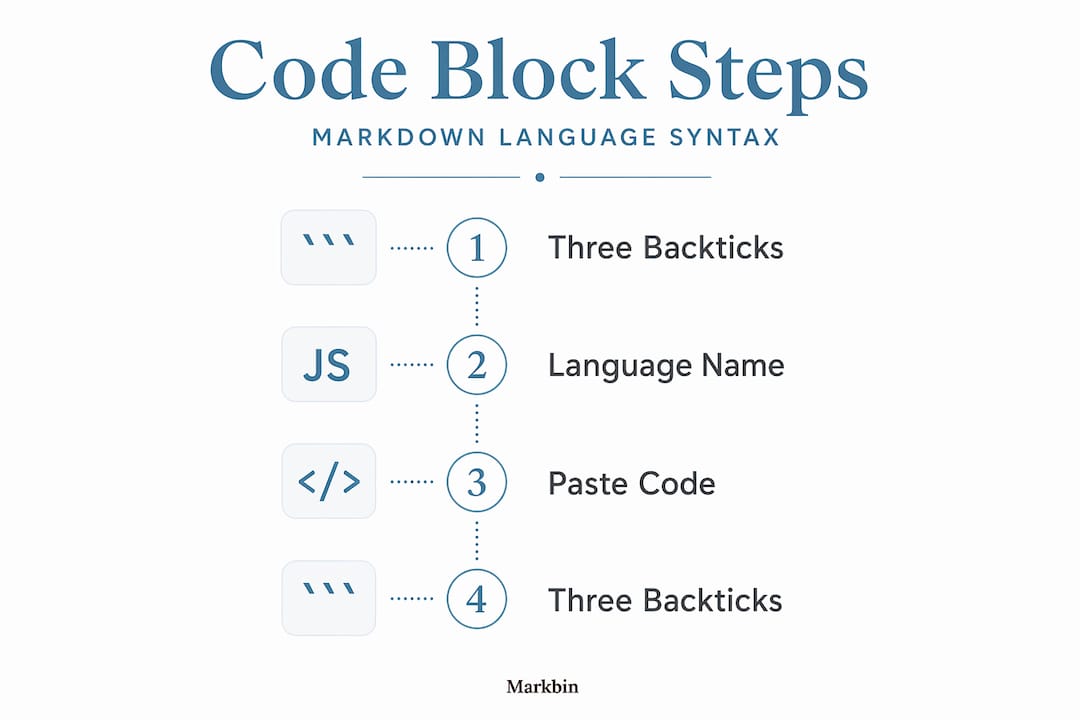
The syntax for a fenced code block is deceptively simple. You open with three backticks, add a language identifier on the same line, write your code, and close with three more backticks on their own line. That language identifier, called an info string, is what tells the renderer which syntax highlighter lexer to apply.

Here is the basic pattern:
"```
def greet(name):
    return f"Hello, {name}"
What most developers don't realize is how much of the rendering logic lives in that one word after the opening fence. [Hugo treats the info string's first word](https://gohugo.io/render-hooks/code-blocks/) as the language type, which allows graceful degradation when an unsupported language produces an empty syntax map.

The CommonMark spec adds a critical constraint that catches people off guard: [closing fences cannot have trailing characters](https://github.com/simplistix/sybil/issues/162). A line like ` ```python ` as a closing fence is invalid and will break block parsing, sometimes silently swallowing the content inside the block. This is not a bug in the parser. It is correct behavior per spec, and it's one of the most common causes of mysteriously broken code blocks in documentation.

A few other things worth knowing about the syntax:

- Language identifiers are often case-insensitive, but not always. Hugo's [LANG identifiers are case-insensitive](https://gohugo.io/content-management/syntax-highlighting/), while some other tools treat them as exact-match strings.
- Some tools support aliases. Writing `js` instead of `javascript` works in many renderers, but the alias has to be registered by the underlying highlighter.
- An info string can technically contain more than just a language tag. Some tools parse additional metadata from it. Most ignore everything after the first word.
- Leaving the identifier blank produces an unformatted code block. It won't throw an error, but you lose all highlighting.

**Pro Tip:** *Always test your code blocks in the exact rendering environment where the documentation will be published. A block that looks perfect in your local preview may render as plain text in your deployment target if the language isn't supported there.*

## Language support across popular tools

Here is where developers most often get tripped up. Markdown language support varies by renderer. There is no global list of markdown highlighting options that applies everywhere. What you actually need to know is which highlighter your tool uses and what that highlighter supports.

The four most common environments you will encounter in developer and technical writing work each have different foundations:

**Hugo** uses Chroma as its built-in highlighter and supports a broad range of languages out of the box. Its LANG identifiers are case-insensitive, and when no matching lexer is found, [Hugo falls back to plain text](https://gohugo.io/functions/transform/highlight/) depending on how the highlight configuration is set. This is predictable behavior, but it means you won't always get an error when a language is unsupported. You'll just get unhighlighted code.

**Docusaurus** ships with a subset of Prism-supported languages enabled by default. [Languages like Java, C#, and PHP](https://docusaurus.io/docs/markdown-features/code-blocks) are available in Prism but are not enabled unless you explicitly add them to the `additionalLanguages` array in your config. Managing Prism component imports from `node_modules/prismjs/components` is necessary for aliases and non-default languages to work properly.

**Azure DevOps** uses highlight.js as its syntax engine. [Identifier labels like `js` for JavaScript and `csharp` for C#](https://learn.microsoft.com/en-us/azure/devops/project/wiki/markdown-guidance?view=azure-devops) are what the platform recognizes, and the authoritative list of supported languages lives in the highlight.js GitHub repository, not in Microsoft's own documentation.

**JetBrains Hub** takes a broader approach. Its [fenced code blocks support a wide range of languages](https://www.jetbrains.com/help/hub/markdown-syntax.html) automatically, including less common ones like Apollo, Erlang, Haskell, Kotlin, and YAML, making it one of the more permissive renderers for markdown code block language support without manual configuration.

Here is a side-by-side comparison of how these tools differ:

| Tool | Underlying highlighter | Default language coverage | Configuration required for extras |
| --- | --- | --- | --- |
| Hugo | Chroma | Broad, case-insensitive | Minimal; most languages built-in |
| Docusaurus | Prism | Limited subset | Yes, via `additionalLanguages` |
| Azure DevOps | highlight.js | Moderate | Consult highlight.js language list |
| JetBrains Hub | Built-in | Broad, many aliases | Minimal; auto-detection supported |
| GitHub (GFM) | Linguist | Broad | No configuration needed |

One thing the table makes clear: if you are writing documentation that will be rendered in multiple environments, you cannot assume that a language identifier that works in one place will work in another. The identifier `dart` might be recognized in JetBrains Hub and GitHub but require explicit Prism configuration in Docusaurus. You can find more detail on how specific [syntax highlighting behaves across tools](https://blog.markbin.net/blog/share-code-snippets-with-syntax-highlighting-easily) in different contexts.

## Advanced nuances you shouldn't skip

Understanding the basics gets you most of the way there. But there are a handful of deeper issues that cause real pain in production documentation environments, and they're worth knowing before you scale a multi-tool docs workflow.

The most dangerous category is silent failure. When a fallback to plain text occurs because a language is unsupported, you get no warning. Your code renders, it just renders without color. This is particularly problematic in large documentation sites where hundreds of code blocks exist and no one is manually verifying each one. Automated tests for markdown rendering are the only reliable defense.

A related issue is what happens with malformed closing fences. Sybil's fenced code block lexer demonstrated a specific bug where closing fences with trailing text caused incomplete code capture. This kind of silent corruption can appear in any parser that doesn't strictly adhere to the CommonMark spec. The code block appears to open but the content inside is truncated, and the rest of the document renders strangely. Testing markdown renderers with malformed fence cases should be part of any documentation CI pipeline.

A few specific advanced pitfalls to keep on your radar:

- **Case sensitivity traps.** Tools that do exact-match identifier lookup will fail on `Python` if the registered lexer is `python`. Always use lowercase identifiers unless you have confirmed your renderer is case-insensitive.
- **Alias mismatches.** Writing `sh` works in some tools but requires `bash` in others, even though they refer to the same highlighter behavior. Keep a reference list of the aliases your specific renderer supports.
- **Cross-platform portability.** A doc that uses Prism aliases like `tsx` may render fine in Docusaurus but silently fail in a Hugo-based site using Chroma. Choosing widely supported identifier names improves portability.

**Pro Tip:** *Check the underlying syntax highlighter's own documentation for the authoritative list of supported languages. Platform-level docs are often incomplete. The highlight.js language list and Prism component directory are more reliable than what any specific tool's readme will tell you.*

## Best practices for managing language tags in docs

Knowing which languages are supported is only half the job. Using them consistently and correctly across a documentation project is where most teams fall short. Here are the practices that actually make a difference.

1. **Establish a canonical identifier list for your project.** Before writing a single code block, document which language identifiers your toolchain supports and which aliases are valid. Share this as a style guide entry. This single step eliminates the vast majority of inconsistent highlighting issues in collaborative writing environments. Learn more about [consistent language tag guidelines](https://blog.markbin.net/blog/code-comment-styles-for-clearer-collaborative-code) in collaborative code documentation.

2. **Verify against the underlying highlighter, not just the platform docs.** If you are using Azure DevOps, look up the highlight.js canonical language list rather than relying on Microsoft's markdown guidance page alone. Platform docs are maintained separately from the highlighter and sometimes lag behind.

3. **Enable non-default languages before publishing.** If your toolchain is Docusaurus, audit your `additionalLanguages` config before going live. Missing a language at config time means every code block using that identifier will silently render as plain text. This is a common mistake in newly set up documentation sites.

4. **Add a closing fence check to your review process.** Closing fences must be on their own line with no trailing characters. A linter rule or pre-commit hook that flags malformed closing fences will save you hours of debugging later. Many documentation teams skip this entirely until they hit their first silent parse failure.

5. **Test rendering across every environment you deploy to.** If the same markdown file is consumed by a documentation site, a wiki, and a README viewer, test all three. Each may render the same code block differently depending on its renderer and configuration. What works in one will not always work in all. You can explore how [markdown rendering varies across platforms](https://blog.markbin.net/blog/styled-text-without-html-a-developers-guide-to-markdown) to understand why consistent testing matters.

## My take on cross-platform markdown highlighting

I've worked with enough documentation stacks to say this clearly: expecting cross-platform uniformity from markdown code block languages is a mistake, and it's one that costs teams more time than they expect.

The assumption that trips people up most often isn't ignorance of the spec. It's confidence. Developers who know markdown well often assume that because fenced code block syntax is standardized, the language support is too. It isn't. I've seen documentation teams spend days debugging a Docusaurus site where a dozen code blocks silently lost their highlighting because the languages weren't added to the `additionalLanguages` config. No error. No warning. Just uncolored code in production.

What I've learned is that the earlier you map out your toolchain's highlighter and its language support, the less painful your documentation workflow becomes. This isn't a one-time task either. When you upgrade your static site generator or change your wiki platform, you need to revalidate your language identifiers against the new underlying highlighter. Tools change their highlighter libraries. Aliases get added or removed.

The other thing I'd push back on is the instinct to use obscure language identifiers for specificity. In my experience, choosing the most common identifier for a language, even if an alias would technically work, produces more portable markdown and fewer surprises when files move between systems.

Validate your rendering. Know your highlighter. Keep your identifier list small and well-documented.

> *— Zack*

## Share beautifully highlighted code with Markbin

If managing syntax highlighting configuration across multiple tools sounds exhausting, that's because it often is. Markbin takes a different approach. Built on GitHub Flavored Markdown with full syntax highlighting support, Markbin renders your fenced code blocks cleanly across a broad range of languages without requiring any configuration on your part. You paste your markdown, it renders correctly, and you get a shareable link instantly.

For developers and technical writers who need to share code snippets, document APIs, or collaborate on technical notes, [Markbin](https://markbin.net) makes that process straightforward. Features like password protection and self-destructing documents give you control over who sees what, and how long it stays accessible. No sign-up required. No configuration files. No silent highlighting failures. Visit Markbin to start sharing well-formatted, syntax-highlighted code the way it should look.

## FAQ

### What languages do markdown code blocks support?

Markdown itself doesn't define a list of supported languages. Language support depends on the renderer and syntax highlighter in use, such as Chroma in Hugo, Prism in Docusaurus, or highlight.js in Azure DevOps.

### Why is my code block not getting syntax highlighted?

The most common reasons are an unsupported or misspelled language identifier, a missing language configuration in tools like Docusaurus, or a malformed closing fence with trailing characters that breaks block parsing.

### Are language identifiers in markdown case-sensitive?

It depends on the tool. Hugo's language identifiers are case-insensitive, but other renderers may require exact-match lowercase identifiers. Using lowercase identifiers consistently is the safest approach across platforms.

### How do I add languages not supported by default in Docusaurus?

You need to add the language name to the `additionalLanguages` array in your Docusaurus configuration and confirm the corresponding Prism component is available in your project dependencies.

### Where can I find the authoritative list of supported languages for a tool?

Check the underlying syntax highlighter directly. For Azure DevOps, consult the highlight.js GitHub repository. For Docusaurus, refer to the Prism component directory. Platform-level documentation is often incomplete or out of date.

## Recommended

- [Share code snippets with syntax highlighting easily](https://blog.markbin.net/blog/share-code-snippets-with-syntax-highlighting-easily)
- [Code comment styles for clearer, collaborative code](https://blog.markbin.net/blog/code-comment-styles-for-clearer-collaborative-code)
- [Styled text without HTML: A developer's guide to Markdown](https://blog.markbin.net/blog/styled-text-without-html-a-developers-guide-to-markdown)
- [Visual Markdown: Efficient, professional document authoring](https://blog.markbin.net/blog/visual-markdown-efficient-professional-document-authoring)