
You paste your carefully written Python function into a team chat, and it arrives as a wall of plain text. No colors, no indentation, just chaos. Every developer and educator who shares code regularly has felt this exact frustration, and it costs real time: teammates misread logic, students copy broken examples, and documentation loses its instructional value. Syntax highlighting is not cosmetic. It signals structure, separates keywords from variables, and makes code scannable at a glance. This guide walks you through the most reliable, battle-tested methods to share code with full formatting intact, across every major platform you actually use.
Table of Contents
- Why formatting matters: The problem with sharing code
- What you need: Tools and platforms for syntax-highlighted sharing
- How to share: Reliable methods for syntax highlighting
- Advanced methods: Sharing between Markdown, HTML, and rich-text platforms
- The truth about sharing code: Details that shape the outcome
- Level up your code sharing with Markbin
- Frequently asked questions
Key Takeaways
| Point | Details |
|---|---|
| Use fenced code blocks | Wrap your code in triple backticks and add the language ID to ensure syntax highlighting. |
| Choose the right tool | Select a platform like GitHub, Stack Overflow, or Markbin that supports highlighted sharing. |
| Mind formatting pitfalls | Export or convert code before sharing to avoid losing indentation or color. |
| Test on the target platform | Always review your snippet after pasting to confirm highlighting and formatting. |
| Collaborate via Gists | Leverage Gists for versioned, private, or public multi-file snippets with full formatting. |
Why formatting matters: The problem with sharing code
Code is not prose. A misplaced tab, a stripped color, or a collapsed indent can turn a working example into a broken one. When you copy code from your editor and paste it into Slack, Teams, or a Google Doc, the receiving application interprets your clipboard content as plain text. It strips the semantic layer, the colors, the monospace font, and sometimes even the whitespace structure.
The most damaging failures happen in three common scenarios:
- Chat applications like Slack or Discord treat pasted code as regular text unless you explicitly trigger a code block using backticks or the platform's own formatting shortcut.
- Documentation platforms like Confluence or Notion may preserve some formatting on paste, but syntax colors almost never survive the trip unless you use their native code block widgets.
- Cross-platform moves between editors, web apps, and presentation tools are where indentation collapses most often. Tabs become spaces, spaces get trimmed, and alignment falls apart.
"Clipboard-based sharing can corrupt indentation for code blocks produced by AI chat tools; exporting/sharing as Markdown code fences is a more reliable option for preserving structure."
When a student copies a broken Python snippet and runs it, they get a syntax error before they even understand the concept you were teaching. When a developer pastes malformed SQL into a query tool, they waste twenty minutes debugging whitespace. Proper formatting is not about aesthetics. It is about accuracy and usability.
Now that you know what's at stake, let's get organized with the right tools and methods.
What you need: Tools and platforms for syntax-highlighted sharing
The good news is that the ecosystem of tools for sharing formatted code is mature and varied. The challenge is knowing which tool fits which situation. Some platforms are built around Markdown, others rely on HTML rendering, and a few specialize in rich-text output for non-developer audiences.
Here is a side-by-side comparison of the most widely used platforms:
| Platform | Markdown support | Account required | Public/private | Export options |
|---|---|---|---|---|
| GitHub Gist | Yes (GFM) | Yes | Both | Raw, download |
| Stack Overflow | Partial | Yes | Public only | None |
| Markbin | Yes (GFM) | No | Both | Shareable link |
| VS Code extension | Yes | No | Local only | Clipboard |
| Paste Perfect | HTML output | No | Local | Clipboard/HTML |
GitHub supports syntax-highlighted fenced code blocks by surrounding the snippet with triple backticks and adding a language identifier directly after the opening fence. This is the most widely recognized standard across developer tools today.

Stack Overflow uses highlight.js to render syntax highlighting, and you can manually specify the language using a comment directive if the auto-detection gets it wrong. This is a detail many developers miss, especially when sharing less common languages like Elixir or Haskell.
Key considerations when choosing a platform:
- Account requirements: GitHub Gist and Stack Overflow both require accounts. Markbin syntax highlighting works without sign-up, making it faster for one-off sharing.
- Privacy controls: Secret gists are not indexed but are accessible to anyone with the link. Markbin supports password protection and self-destructing documents for genuinely private sharing.
- Read-only access: When sharing with non-developers, a rendered view (not raw Markdown) is far easier to consume.
- Embedding: Some platforms generate embeddable iframes or links; others only offer raw file downloads.
With the right tool in mind, here's how to actually share code snippets with full formatting.
How to share: Reliable methods for syntax highlighting
The most portable and universally understood method for sharing syntax-highlighted code is the Markdown fenced code block. It works on GitHub, GitLab, Markbin, Reddit, many documentation platforms, and even some chat apps.
Here is a step-by-step workflow for the most common scenarios:
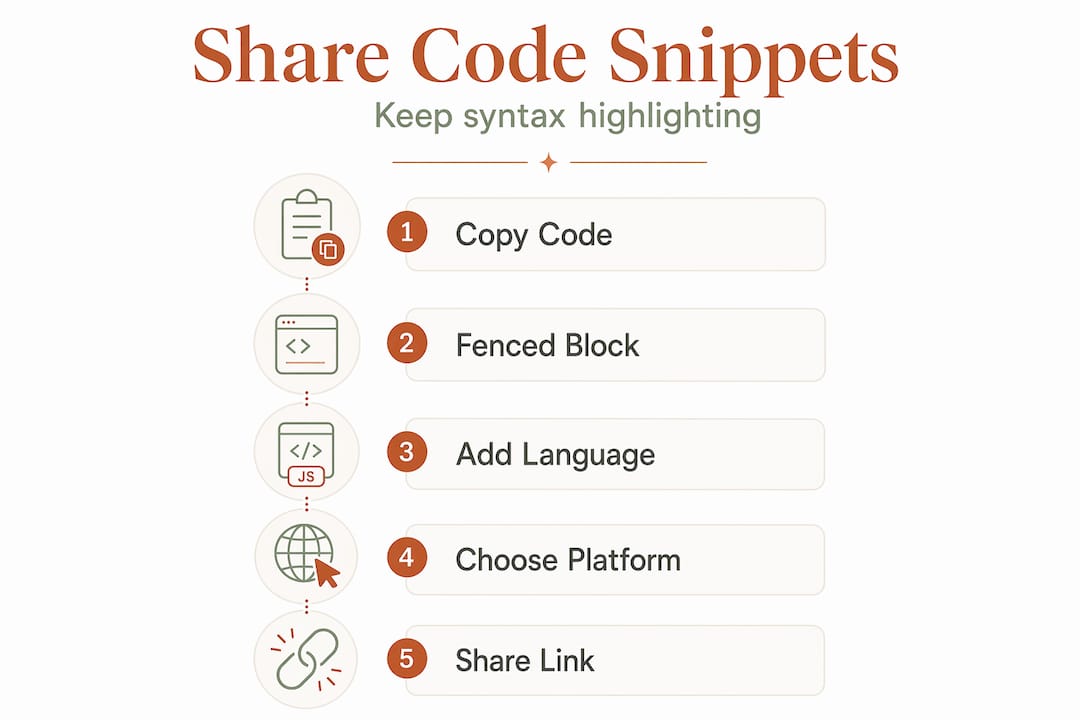
- Write your code in your editor and select the entire snippet you want to share.
- Wrap it in a fenced code block by adding three backticks on the line before and after your code. Immediately after the opening backticks, add the language identifier (for example, "
python ` or `javascript `). - Paste the entire Markdown block into your target platform. If the platform renders Markdown, you will see syntax highlighting immediately.
- For GitHub Gist, log in, navigate to gist.github.com, paste your fenced code block or raw code, name the file with the correct extension (
.py,.js, etc.), and click "Create secret gist" or "Create public gist." - For Stack Overflow, paste your code, select it, and use the code formatting button or press Ctrl+K. If the language is not detected correctly, add a language hint comment at the top of your block.
- For VS Code users, the Copy Code as Snippet extension converts selected code into a portable Markdown fenced block directly in your clipboard, ready to paste anywhere without manually typing the backtick fences.
Pro Tip: Use lowercase language identifiers for your fenced code blocks when publishing to GitHub Pages. Uppercase identifiers like ```Python can silently break syntax highlighting in the static site generator, and the failure is not always obvious until you preview the rendered page.
The fenced code block approach works because it is explicit. You are telling the renderer exactly what language to use, rather than relying on auto-detection, which can misfire on short snippets or unusual syntax.
Some situations require more advanced handling, especially when moving between HTML and Markdown or into apps like Word.
Advanced methods: Sharing between Markdown, HTML, and rich-text platforms
Not everyone you share code with lives in a Markdown-aware environment. Executives want PowerPoint slides. Teachers paste into Word documents. Product managers work in Google Docs. These destinations do not understand fenced code blocks, and pasting raw Markdown into them produces literal backticks and no highlighting at all.
Here is a comparison of approaches for different destination types:
| Destination | Best method | Preserves color | Preserves indentation |
|---|---|---|---|
| GitHub, GitLab, Markbin | Markdown fenced block | Yes | Yes |
| Word, PowerPoint | HTML styled copy (Paste Perfect) | Yes | Usually |
| Google Docs | Manual code block widget | Partial | Yes |
| Email clients | Inline HTML | Partial | Risky |
| PDF export | Print from rendered view | Yes | Yes |
Paste Perfect addresses this gap by converting syntax-highlighted code into HTML-formatted output that retains both color and indentation when pasted into rich-text editors like Word or PowerPoint. This is particularly useful for educators who prepare instructional materials in Office formats and need code examples to look exactly as they do in a terminal or editor.
A few important cautions when working across these formats:
- Whitespace drift: Even with HTML copying, some applications reinterpret tab characters. Always check the final output before sending.
- Color mismatch: The color theme from your editor may not translate faithfully. Stick to high-contrast themes (dark background, bright syntax colors) for better legibility in printed or projected formats.
- Platform-specific quirks: Google Docs, for example, handles HTML paste differently depending on the browser you use. Chrome tends to preserve more formatting than Firefox in this context.
For teams that need HTML to Markdown code conversion in the other direction, converting an HTML-formatted code block back into a clean Markdown fence is equally important when migrating documentation from a CMS to a Markdown-based static site.
Pro Tip: Always render and review your final output in the destination environment before sharing it widely. Copy-paste behavior in rich-text applications is genuinely inconsistent, and what looks perfect in your browser may arrive broken in someone else's Word installation.
Collaboration-ready: Versioned, shareable code using Gists
Gists are one of the most underused tools in a developer's sharing toolkit. They behave like lightweight repositories: each gist is version-controlled, supports multiple files, and generates a unique shareable URL. You can update a gist and the link stays the same, which is ideal for tutorials or documentation that evolves over time.
Key features and considerations for Gists:
- Version history: Every edit to a gist is tracked. You can view diffs and roll back to any previous version, which is invaluable for collaborative debugging.
- Secret vs. public gists: Secret gists are not searchable or listed publicly, but anyone with the URL can view them. Use secret gists for sharing work-in-progress code with a specific colleague without exposing it to the broader internet.
- Multi-file support: A single gist can contain multiple files, each with its own syntax highlighting based on the file extension. This is useful for sharing a component alongside its test file, for example.
- IDE integration: PyCharm and other JetBrains IDEs let you create and open gists directly from the editor, without leaving your development environment.
Common troubleshooting issues with Gists:
- Syntax highlighting missing: This usually means the file has no extension or an unrecognized one. Rename the file with the correct extension (
.ts,.rb,.go) and the highlighting will appear. - Link not working for a teammate: If you shared a secret gist URL and the recipient gets a 404, they may be logged into a GitHub account that does not have access. Secret gists are accessible to anyone with the link, regardless of account, so the issue is likely a typo in the URL.
- Gist not updating: Gists do not auto-refresh in the browser. Ask the recipient to hard-refresh the page after you push an update.
After these methods, let's examine the underlying principles that can make or break code sharing.
The truth about sharing code: Details that shape the outcome
Here is something most guides will not tell you directly: the majority of code sharing failures are not technical problems. They are attention problems. The tools exist. The standards are clear. What breaks the workflow is inconsistency, skipping steps, and trusting platform defaults that were never designed with your specific use case in mind.
The counterintuitive reality is that adding more tools rarely fixes a broken sharing workflow. What fixes it is discipline around a small number of explicit habits. Always specify your language identifier. Never assume the platform will detect it correctly from context. Always check indentation after pasting, not before. The clipboard and rich-text serialization layer between your editor and the destination is where formatting quietly dies, and no tool can fully compensate for skipping the verification step.
The teams that share code most effectively are not using the most sophisticated tools. They are using a consistent, documented workflow that every member follows. That might mean a shared Markbin template for all code snippets in a project, or a team-wide agreement to always use fenced Markdown blocks with explicit language IDs. The format matters less than the consistency.
Universal syntax highlighting across platforms becomes achievable not through magic, but through picking one reliable method and sticking to it. Explicitness beats cleverness every time when code needs to travel across tools, teams, and contexts.
Level up your code sharing with Markbin
If you are tired of wrestling with formatting every time you share a snippet, Markbin was built specifically to remove that friction. Paste your Markdown, get a shareable link instantly, no account required. Markbin supports full GitHub Flavored Markdown including syntax highlighting for dozens of languages, so your code arrives exactly as you wrote it. For teams handling sensitive code, features like password protection and self-destructing documents add a layer of security that general-purpose paste tools simply do not offer. Try Markbin for your next code share and see how much faster your workflow becomes. For teams with higher-volume needs, explore Markbin pricing to find the right plan.
Frequently asked questions
How do I specify a language for code highlighting in Markdown?
Add the language name immediately after the opening triple backticks in your code block, with no space between the backticks and the language name. GitHub supports this syntax for all major programming languages.
What's the best way to retain code formatting when sharing with teammates?
Export your code as a Markdown fenced code block to maintain both structure and syntax colors across platforms. Clipboard-based sharing corrupts indentation far more often than most developers realize.
Can I create private code snippets for sharing?
Yes, create a secret gist on GitHub to share a snippet privately with selected individuals using a direct link. Each gist behaves as a mini repository, and secret gists are not searchable or publicly listed.
Why does my code lose indentation when pasted into Word or PowerPoint?
Rich-text applications reinterpret whitespace characters during paste, which collapses indentation. Paste Perfect addresses this by exporting code as HTML-formatted output that Word and PowerPoint can render with indentation and color intact.
How can I share multiple files at once with syntax highlighting?
Create a multi-file public or secret gist and add each file separately with the correct extension. Gists support multiple files with independent syntax highlighting, making them ideal for sharing components alongside their tests or configuration files.