
Most developers and technical writers treat Markdown as a plaintext discipline. You write the raw syntax, you mentally picture the output, and you trust the renderer. That workflow works fine until a non-technical stakeholder needs to review a draft, a collaborator reformats a table by hand, or you spend ten minutes debugging a broken link that looked correct in source. Visual Markdown documents change that equation entirely. They bridge the gap between raw syntax and polished output, but the mechanics behind them are more nuanced than "just click bold." Understanding how these tools work, where they shine, and where they create new problems is what separates a smooth authoring workflow from a frustrating one.
Table of Contents
- What is a visual Markdown document?
- How visual Markdown editors work
- Key features to look for in visual Markdown tools
- Pitfalls and best practices: Switching modes, formatting, and collaboration
- A new approach: Visual Markdown as an agile workflow layer
- Try Markbin: Smooth visual Markdown editing for professionals
- Frequently asked questions
Key Takeaways
| Point | Details |
|---|---|
| Clear WYSIWYG definition | Visual Markdown documents are authored in editors that show formatting live while keeping standard Markdown text. |
| Syncing and normalization | Visual editors synchronize the UI with underlying Markdown, which may normalize formatting when switching modes. |
| Critical features checklist | Choose tools that offer real-time formatting, extensibility, and reliable Markdown exports for projects. |
| Pitfalls of mode switching | Switching modes can alter file formatting and impact collaborative workflows, especially with version control. |
| Expert workflow advice | Treat visual Markdown as a fast workflow layer—maintain standard outputs and anticipate formatting changes. |
What is a visual Markdown document?
Most people assume "visual Markdown" just means syntax highlighting in a dark-themed editor. It is actually a much bigger shift. A visual Markdown document is one authored through a WYSIWYG (what you see is what you get) interface that renders formatting inline or in a live preview pane while you type. Quarto's documentation captures this well: a visual Markdown document is one authored in a WYSIWYG editor that renders formatting inline or in a preview pane as you edit.
The contrast with classic plaintext Markdown is significant. In traditional editing, you write "bold` and trust your mental model. In a visual editor, those two asterisks instantly disappear and the word becomes bold right on your cursor. Tables become actual grids. Headers render at their correct weight. Hyperlinks turn into clickable text instead of long URL strings.
Here is what this looks like in practice for everyday workflows:
- Inline rendering mode: Formatting changes apply directly in the editing surface, similar to Google Docs or Notion.
- Split preview mode: Source Markdown stays on the left; a live-rendered preview updates on the right.
- Preview-first mode: The rendered output is the primary view; source editing is available but secondary.
"Visual Markdown is not a replacement for understanding Markdown syntax. It is an authoring interface that keeps that syntax hidden during composition while preserving it in the underlying file."
Tools like the Quarto visual editor and several AI-driven editing tools have pushed visual Markdown into serious professional use. The workflow benefit is immediate: technical writers onboard faster, reviewers engage with drafts more confidently, and teams spend less time explaining Markdown conventions to contributors who just need to add a paragraph.
How visual Markdown editors work

Knowing what visual Markdown is only takes you so far. Understanding the mechanics tells you why certain behaviors happen, which is critical for maintaining clean files in a professional codebase or documentation repository.
At the core, visual editors maintain a single underlying Markdown or plaintext representation while synchronizing a visual UI back to that text. Nothing is stored as rich text, HTML, or a proprietary binary. The source of truth is always the Markdown file itself. The visual interface is essentially a lens on top of it.
The synchronization process works through an Abstract Syntax Tree (AST). When you click into a visual editor:
- The editor parses the raw Markdown file into an AST, a structured tree of nodes representing headings, paragraphs, lists, code blocks, and so on.
- The visual UI renders from that AST, displaying formatted output instead of raw syntax.
- When you make a change in the visual layer, the editor updates the AST node.
- The updated AST serializes back to Markdown text and writes to the underlying file.
This bidirectional pipeline is what makes visual Markdown editors powerful but also slightly unpredictable. The serialization step (step 4) is where formatting normalization happens. Different editors serialize the same content differently. One tool might write ordered lists with 1. on every item; another increments the numbers. One might use dashes for unordered lists; another prefers asterisks. These small differences create noise in version control diffs, which matters a great deal for teams using Git-based documentation workflows.
Here is a quick comparison of how key technical properties vary across editor types:
| Feature | Source-only editor | Split-preview editor | Full visual editor |
|---|---|---|---|
| Real-time rendering | No | Partial (preview pane) | Yes |
| AST-based editing | No | No | Yes |
| Risk of normalization | None | Low | Medium to high |
| Collaboration ease | Low | Medium | High |
| Git diff cleanliness | Best | Good | Depends on serializer |
For collaborative editing workflows, the full visual editor row often wins on every dimension except diff cleanliness. Knowing this trade-off in advance helps you set up the right .editorconfig rules or pre-commit hooks to normalize formatting before files hit your repository.
Key features to look for in visual Markdown tools
Understanding the mechanics, the next step is choosing the right tool. Here is what your workflow should prioritize.
Not all visual Markdown tools are equal. The rendering mode, interaction model, and extensibility of a tool will define whether it fits a solo technical writer's workflow or a 10-person documentation team's needs. Preview modes and WYSIWYG interactions matter as much as feature breadth, from inline rendering to split preview to extensibility for tables, citations, and diagrams.
Rendering mode matters more than you think. Inline rendering is best for writers who want zero visual friction. Split preview is best for developers who like to see and verify source simultaneously. Preview-first mode suits editors or reviewers who rarely touch source. Choosing wrong means your team defaults back to raw source editing out of frustration.
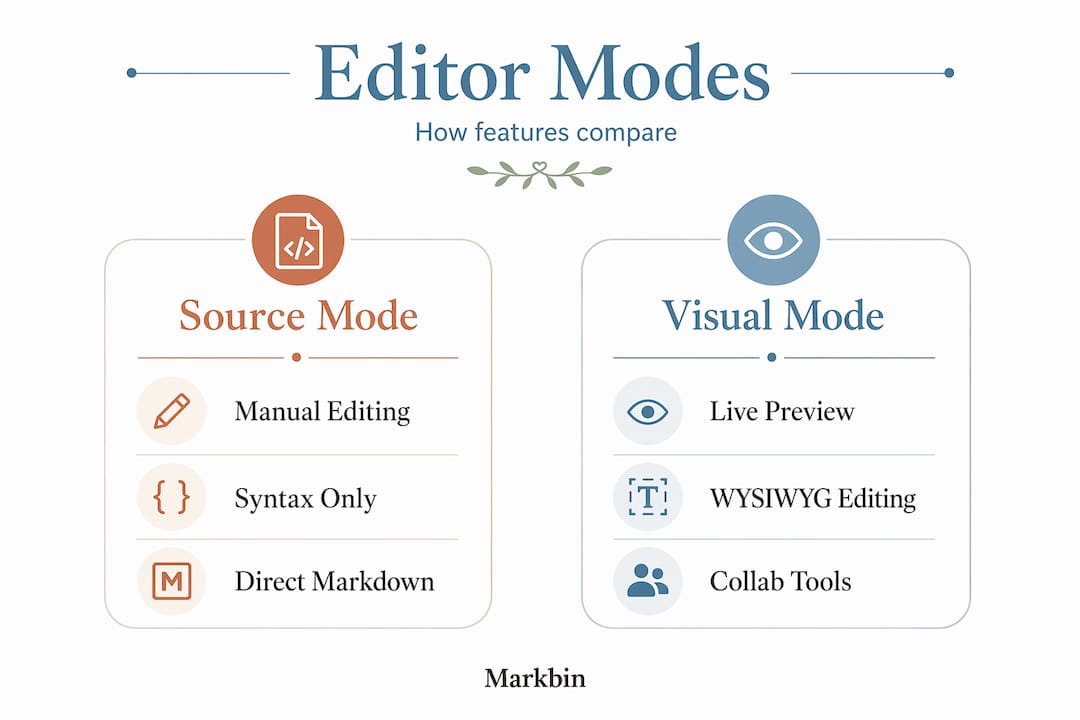
Formatting toolbars and click-to-edit interactions are the interface features that make visual Markdown accessible to non-technical contributors. A toolbar that exposes heading levels, bold, italic, link insertion, and table creation keeps contributors in the document instead of searching for Markdown syntax references. This alone can cut onboarding time for new documentation contributors by half.
Extensibility is where power users separate good tools from great ones. Look for:
- Native table editing with click-to-add-row and click-to-add-column
- Citation management integration (especially for research or academic documentation)
- Diagram support (Mermaid, PlantUML, or similar) rendered inline
- Math formula rendering for technical specifications or scientific documentation
- Syntax-highlighted code blocks with language selection
Export and output fidelity is non-negotiable. Some visual editors introduce proprietary front matter, custom metadata, or non-standard syntax that breaks cleanly when you move the file to another tool. Always verify that the output file is standard GitHub Flavored Markdown (GFM) or CommonMark. Open the exported file in a basic editor and confirm it reads like clean Markdown. If it does not, your workflow has a dependency on that tool's renderer forever.
Pro Tip: Before committing to any visual Markdown tool, paste a complex document with nested lists, a table, a code block, and a Mermaid diagram into it. Switch between visual and source mode three times. Then inspect the file in a plain editor. Any normalization or added syntax you did not write is a warning sign.
Pitfalls and best practices: Switching modes, formatting, and collaboration
Choosing tools is only the start. Here is what to watch for as you edit and collaborate with visual Markdown.
The most common surprise for teams adopting visual Markdown editors is formatting normalization. Switching between visual and source modes can rewrite Markdown formatting, and that rewriting affects diff outputs and any file formatting conventions your team tracks in version control. A PR that only changed one sentence in a technical guide can suddenly show 40 changed lines because the visual editor re-serialized every bullet point style and every heading spacing rule.
This is not a bug. It is a design decision in how the AST serializer works. But it creates real friction. Here is how to handle it:
- Establish a single canonical formatting style before your team starts using a visual editor. Decide on dashes vs. asterisks for lists, ATX-style headings (using
#) vs. Setext headings (using underlines), and trailing whitespace conventions. - Use a Markdown linter like
markdownlintin your CI pipeline. This catches formatting drift before it accumulates. - Designate one mode as primary. If 80% of your team uses the visual editor, that is your primary mode. Source editing becomes a fallback, not the norm. Mixed usage without an agreed standard is where normalization chaos begins.
- Document your tool version. Visual editor serialization behavior can change between versions. A version bump can suddenly normalize files differently, flooding your next PR with formatting changes.
For group editing features, the discipline of setting up these guardrails early pays off enormously. Teams that skip this step often end up with Git histories so noisy with formatting changes that blame and log commands become nearly useless for tracking actual content edits.
On the collaboration side, professional project standards require confirming that the tool preserves your formatting conventions and handles any non-standard Markdown extensions consistently. If your documentation includes custom shortcodes, extended syntax, or non-GFM features, test how the visual editor round-trips those elements before committing to it as your team's standard tool.
Pro Tip: Create a shared "test document" in your repository that contains every Markdown element your team uses. Run it through any new visual tool candidate before adoption. If the file changes on open or on mode switch, you have found a normalization issue before it hits production.
A new approach: Visual Markdown as an agile workflow layer
Here is the take that most adoption guides skip: the biggest mistake teams make with visual Markdown is treating the visual editor as the primary storage and management format instead of what it actually is, which is an authoring interface layer.
If you are a developer or technical writer, treat visual Markdown as an authoring UX layer sitting on top of plain Markdown. It is excellent for fast composition and presentation checks. It is not meant to be the system of record in the way a database or a Git repository is. The moment you start thinking "this only works in our visual editor," you have introduced a tool dependency that will cost you later.
The most resilient workflows we have seen use visual editing for the drafting and review phase, then enforce plain Markdown standards before anything merges. Think of it like how some teams use a rich text email client to compose a message but store the actual content as structured data. The visual layer accelerates creation. The plain layer ensures portability and longevity.
This also reframes how you think about group editing in tech environments. Visual Markdown is an on-ramp, not a destination. It lets non-technical teammates contribute to documentation without learning Markdown syntax. It lets technical reviewers spot formatting issues faster. But the underlying file must remain clean, standard Markdown. That file is what deploys to your docs site, what gets indexed by search, and what outlives any specific editor tool.
The counter-intuitive conclusion: the more you invest in visual Markdown tooling, the more important it becomes to maintain rigorous plain Markdown hygiene. The visual layer is only as trustworthy as the underlying text it manages.
Try Markbin: Smooth visual Markdown editing for professionals
Putting these principles into practice requires a tool that respects both the visual authoring experience and the integrity of your underlying Markdown files. Markbin's visual editor is built for exactly this workflow. It supports full GitHub Flavored Markdown including tables, task lists, syntax-highlighted code blocks, and math formulas, so your documents render beautifully without introducing proprietary formatting. Sharing is instant, with password protection and self-destructing document options for secure collaboration. Whether you are a developer writing technical specs or a technical writer managing a documentation suite, Markbin handles the visual layer while keeping your Markdown clean. Check out Markbin pricing to find the right plan for your team's scale and workflow.
Frequently asked questions
Can I switch between visual and source modes without breaking my Markdown?
Most visual Markdown editors allow switching between modes; however, switching modes can rewrite or normalize Markdown formatting, which may alter how text appears and how differences are shown in version control. Setting a canonical formatting standard before switching modes minimizes this risk.
What features make a visual Markdown editor good for collaboration?
Look for tools with real-time rendering, standard Markdown export, and solid support for WYSIWYG interactions and extensibility for tables, citations, and diagrams, as those are the elements that most often break in collaborative workflows.
Does a visual Markdown editor produce standard Markdown files?
A reliable visual Markdown editor maintains standard Markdown files, but you should always verify by confirming the tool produces normal Markdown text and handles any non-standard extensions consistently before adopting it for production documentation.
Are visual Markdown documents suitable for version control systems like Git?
Yes, and they work well, but be aware that switching between editing modes can rewrite formatting and affect diff results. Standard Markdown output and a consistent formatting convention are essential for keeping your Git history readable and your blame commands useful.