
Most developers assume Markdown applies the colors in their code blocks. It does not. Markdown syntax highlighting explained correctly means understanding that Markdown only defines structure — the fenced code block, the language label, the indentation. The actual coloring comes from a separate rendering layer, usually a JavaScript library running at display time. This article covers how that pipeline actually works, what advanced features are available and where they break down, which tools deserve your attention, and what best practices separate clean documentation from messy, inconsistent code samples.
Table of Contents
- How markdown syntax highlighting really works
- Advanced markdown syntax highlighting features and limitations
- Common pitfalls when writing markdown code blocks
- Choosing and configuring the right tools for markdown syntax highlighting
- Practical tips for creating clean, shareable markdown documentation with syntax highlighting
- Why most markdown syntax highlighting guides miss the mark
- Explore Markbin for seamless markdown syntax highlighting
- Frequently asked questions
Key Takeaways
| Point | Details |
|---|---|
| Markdown provides structure only | Markdown defines how code blocks are structured but doesn't apply colors by itself. |
| Info string guides highlighting | The language info string after the code fence tells highlighters which grammar to use. |
| Advanced features vary by tool | Line highlighting and numbering require tool-specific metadata that isn't standardized. |
| Config issues cause failures | Missing language imports or CSS overrides usually cause syntax highlighting to fail, not Markdown syntax. |
| Test your setup thoroughly | Always verify highlighting works as expected across your tools and environments to ensure consistency. |
How markdown syntax highlighting really works
Markdown's original spec has no color engine. When you write a fenced code block, you are simply telling the parser "this content is code" and optionally, what language it is. The info string is the language identifier placed immediately after the opening triple backtick, and it is what syntax highlighters read to select the right grammar rules.
Here is what actually happens in sequence:
- The Markdown parser converts your raw text into HTML, wrapping code blocks in "<pre><code class="language-javascript">` tags
- A JavaScript library like PrismJS or highlight.js scans the rendered HTML for those class names
- The library tokenizes the code based on grammar rules for that language
- It wraps tokens in
<span>elements with specific CSS classes - Your stylesheet (bundled with the library or custom) maps those classes to colors
The Markdown file never touches color. It never will. A solid developer's guide to Markdown styling will tell you the same thing: what you see in your rendered output is the product of at least three separate systems working together. Markdown handles syntax, a parser handles conversion, and a highlighter handles color. Miss any one layer and you get plain, uncolored code.
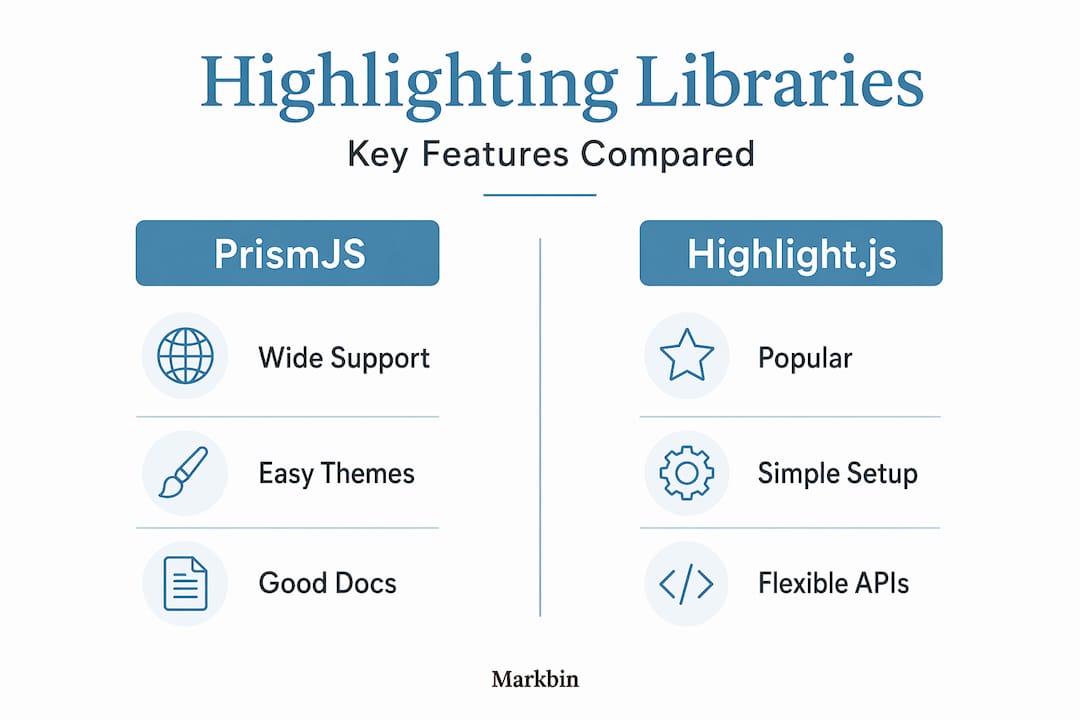
Popular libraries for this job include PrismJS, highlight.js, Shiki, and sugar-high. PrismJS is the most widely used in React ecosystems. Shiki uses VS Code's grammar engine under the hood, which means its output looks almost identical to your editor. Each library has its own way of scanning and coloring tokens, which is why the same code block can look very different depending on where you render it.

Advanced markdown syntax highlighting features and limitations
The info string does more than name a language. Many Markdown tools let you append metadata after the language identifier to unlock extra rendering features. For example:
showLineNumbersto display line numbers in the left gutter{3,7-9}style range syntax to highlight specific lines in a different background color- Custom titles or filenames displayed above the code block
Docusaurus and Hexo support these metadata options natively. Docusaurus uses showLineNumbers and inline range highlighting out of the box. That said, these are not part of the CommonMark standard. Advanced features like line numbering rely on tool-specific metadata and can break completely when you move content between frameworks.
Here is a quick comparison of how popular tools handle advanced markdown code highlighting features:
| Feature | Docusaurus | Hugo | Hexo |
|---|---|---|---|
| Line numbers | Native (showLineNumbers) | Via render hook config | Via plugin |
| Line highlighting | Native (range syntax) | Configurable in config.toml | Plugin-dependent |
| Custom title/filename | Supported | Supported | Partial support |
| CommonMark compliant | Yes (GFM superset) | Yes | Yes |
| Portability | Low for extensions | Low for extensions | Low for extensions |
The portability column tells the real story. Every tool extends markdown syntax highlighting examples in its own way, and that extension layer is where friction lives. Content that renders beautifully in Docusaurus may produce raw, unparsed metadata strings in Hugo without the right render hook configured.
Pro Tip: Treat advanced metadata features as environment-specific enhancements. Document which tool you are targeting at the top of your content repository so future contributors know what syntax is safe to use.
If you want to explore advanced markdown features beyond code highlighting, the same portability principle applies across most GFM extensions.
Common pitfalls when writing markdown code blocks
Understanding advanced features also means knowing where things go wrong. Most highlighting failures are not Markdown errors. They are configuration and authoring mistakes.
-
Incorrect fence nesting. If you need to show a code block inside a code block (common in documentation about Markdown itself), the outer fence must use more backticks than the inner. Nested code blocks must use more backticks on the outer fence or the parser will close prematurely and break your output.
-
Missing language components in PrismJS. PrismJS does not load every language grammar by default. If you add a code block with the language set to
rustbut never imported the Rust grammar module, nothing gets highlighted. Syntax highlighting issues often stem from missing language components, not from anything wrong with your Markdown. -
CSS overrides wiping token colors. Global stylesheets in many documentation themes include aggressive resets. A rule like
code * { color: inherit; }silently kills every token color PrismJS or highlight.js applies. Check your browser's dev tools and inspect a<span>inside your code block. If it showscolor: inheritoverriding a library color, that is your culprit. -
Wrong class prefix. highlight.js uses
hljs-prefixed classes. PrismJS usestokenandlanguage-prefixes. If your CSS file is written for one library and your renderer is using the other, no styles will match.
Pro Tip: When debugging a broken code block, start by checking the rendered HTML in your browser's inspector. If you see <span class="token keyword"> without any applied color, your CSS is missing or being overridden. If you see no <span> elements at all, your highlighter never ran.
Visit syntax highlighting tips for more worked examples of debugging common output issues.
Choosing and configuring the right tools for markdown syntax highlighting
Now that you know what breaks, let's talk about what works. Choosing a syntax highlighting library is not just about which one looks best in a demo. It is about how well it integrates with your Markdown processor, how it handles themes, and how much maintenance it adds to your project.
Here is a comparison of the four most commonly used libraries:
| Library | Language support | Theme system | Light/dark mode | Best for |
|---|---|---|---|---|
| PrismJS | 290+ languages | CSS-based themes | Manual CSS swap | React apps, custom sites |
| highlight.js | 190+ languages | Bundled CSS themes | Manual CSS swap | General use, low config |
| Shiki | 200+ (VS Code grammars) | VS Code themes | Native dual-theme API | Static sites, accuracy |
| sugar-high | ~20 languages | Minimal, customizable | Easy to customize | Lightweight React apps |
Themes for code blocks should have separate settings for light and dark modes, with background colors that match the theme's base palette. A dark-mode code block sitting inside a light-mode page with a white background is a jarring experience that signals "this was set up once and never maintained."
Key configuration steps regardless of library:
- Import or load only the language grammars you actually use to reduce bundle size
- Apply a CSS theme that matches your site's light and dark mode states
- Test code block appearance on mobile, where line overflow and horizontal scrolling often break the reading experience
- Verify that your Markdown processor and your highlighter are talking to each other correctly (some processors need explicit plugins to hand off to a highlighter)
Pro Tip: Shiki is worth the slightly higher setup cost for documentation sites where visual accuracy matters. Its output mirrors VS Code exactly, which means your code samples look the same as what developers see in their editors every day. That familiarity builds trust.
Explore more at Markbin to see how a well-configured highlighting pipeline looks in practice without any manual setup on your end.
Practical tips for creating clean, shareable markdown documentation with syntax highlighting
Good understanding of markdown syntax guide principles only matters if it translates to documentation people can actually use. Here are the practices that separate professional documentation from cobbled-together notes.
- Always include a language identifier. A fenced code block without a language label relies on autodetection, which fails more than you expect. Label every block, even for shell commands (
bashorsh). - Test across multiple viewers before sharing externally. A document that looks great in your local dev environment may render differently in GitHub, a documentation platform, or an email client. Sharing markdown code examples across contexts requires testing in each target environment.
- Use metadata selectively. Add line numbers and line highlighting only when they genuinely help the reader, and only after confirming your target platform supports them.
- Add captions or titles where the tool supports it. A code block labeled
config/settings.pygives readers immediate context about where the code lives in a project. - Avoid wrapping syntax-highlighted blocks in other elements. Nesting code blocks inside blockquotes or custom HTML containers often breaks highlighter output in unpredictable ways.
One often missed detail: spreading getTokenProps styles is required when using prism-react-renderer in React. Skipping this step causes color loss even when every other part of the setup is correct. It is a one-line fix that a surprising number of developers overlook.
The markdown formatting tips that actually stick are the simple ones: label everything, test everywhere, and never assume that what works in one renderer works in all of them.
Why most markdown syntax highlighting guides miss the mark
Most articles on this topic treat Markdown as the unit of analysis. They explain fenced code block syntax, show you a few markdown syntax highlighting examples, and move on. What they skip is the harder truth: Markdown is a thin layer at the top of a multi-system pipeline, and the highlighting experience you deliver is only as good as the weakest link in that chain.
The real complexity is in the ecosystem. Developers pick a Markdown parser, bolt on a highlighter, apply a CSS theme, and hope it all works together. When it does not, the debugging path is non-obvious because the failure can live in any of three separate systems. Most guides do not explain this because explaining it requires admitting that understanding markdown syntax alone does not get you very far.
There is also a portability trap that nobody talks about enough. Extended metadata features (line numbers, line highlighting, custom titles) are genuinely useful for collaborative code documentation, but they lock you into a specific tool. Move your content to a different platform and those features silently break or render as garbage strings in the code block. The practical advice is to separate your content from its presentation layer as much as possible. Use core fenced code block syntax with language identifiers as your baseline. Add metadata enhancements only in contexts where you control the renderer end to end.
The developers who get this right are not the ones who know the most advanced features. They are the ones who know which features to skip.
Explore Markbin for seamless markdown syntax highlighting
If you want to put these principles to work without the configuration overhead, Markbin handles the entire highlighting pipeline for you. It supports full GitHub Flavored Markdown with syntax highlighting across dozens of languages, automatic theme handling, and instant shareable links. You do not need to configure PrismJS, manage CSS themes, or test across renderers. Paste your Markdown, get a clean, highlighted document, and share it immediately. Markbin also supports advanced features like password protection and self-destructing documents, making it useful for both public and confidential technical content. Check Markbin's pricing to find a plan that fits your workflow.
Frequently asked questions
Does Markdown apply syntax highlighting by itself?
No. Markdown only provides structure; the actual colors are applied by a separate JavaScript library like PrismJS or highlight.js at render time.
What is the info string in fenced code blocks?
The info string is the language identifier placed directly after the opening triple backtick, and it tells the syntax highlighter which grammar rules to apply.
How can I highlight specific lines in a Markdown code block?
You add metadata strings with line ranges and options like showLineNumbers after the language identifier, but line highlighting is tool-specific and support varies by Markdown platform.
Why is my code block not showing colors?
The most common causes are missing language components in your highlighter configuration or global CSS rules overriding the token colors, not anything wrong with your Markdown syntax.
Are advanced syntax highlighting features portable across Markdown platforms?
No. Features like line highlighting and custom titles are not part of CommonMark and may produce broken output or unrendered metadata when you switch tools.