
Sending a collaborator a 12-page Word document of annotated references and then fielding three emails asking "which version is current?" is a workflow most researchers know too well. The ability to share annotated bibliography via link changes that dynamic entirely. Instead of attaching static files or pasting citation blocks into emails, you give your collaborators a URL they can open on any device, in any browser, with no software required. This guide covers exactly how to do that using NCBI's My Bibliography and Zotero, two of the most widely used tools in academic research environments.
Table of Contents
- What you need before sharing an annotated bibliography via link
- Sharing your annotated bibliography via NCBI's My Bibliography public URL
- Using Zotero to create and share annotated bibliographies as text or PDFs
- Troubleshooting common issues and best practices when sharing annotated bibliographies via link
- What to expect after sharing: verifying access and collaboration workflow
- Why relying solely on live shareable links can limit collaborative success
- Discover Markbin: the smart platform for sharing and managing annotated bibliographies
- Frequently asked questions
Key Takeaways
| Point | Details |
|---|---|
| Choose platform wisely | Use platforms like NCBI that support public URLs to share annotated bibliographies effortlessly. |
| Zotero exports static docs | Export Zotero bibliographies as text or PDFs to share since it lacks live public link hosting. |
| Manage privacy settings | Label citations private in NCBI to control which appear on your shared bibliography link. |
| Test access thoroughly | Always verify your shared link works and collaborators can see annotations clearly. |
| Use hybrid sharing strategies | Combine platform links with exported documents for smooth collaboration and updates. |
What you need before sharing an annotated bibliography via link
Before you can share bibliography online, you need to make one foundational decision: are you sharing a live link or a static exported document? These are not the same thing, and confusing them causes real friction later.
A live link points to a hosted version of your bibliography that updates when you change the source. NCBI's My Bibliography does this natively. A static export, like a PDF or a Word file uploaded to Google Drive, is a snapshot. Once you export it, changes to your reference manager don't carry over automatically. Knowing which one you need shapes every step that follows.
To share annotated bibliographies via link, use platforms with built-in public URLs or export static outputs and host them somewhere accessible. Here's what to have ready before you start:
- A reference management account with your citations already organized into a collection or library. Incomplete records will produce incomplete bibliographies.
- Annotations already written and saved in the correct metadata field for your chosen platform. The field matters more than most people realize, and we'll cover that in detail below.
- A clear sense of privacy requirements. Academic collaboration sometimes involves unpublished data or pre-publication citations. Know which entries need to stay private before you make anything public.
- An account login for any platform you plan to use for tools for cloud sharing bibliographies.
The table below compares the two most common bibliography sharing options by key criteria:
| Feature | NCBI My Bibliography | Zotero |
|---|---|---|
| Native live public URL | Yes | No |
| Annotation display support | Limited | Yes (via custom style) |
| Privacy controls | Per-citation labeling | N/A (export-only) |
| Export to PDF/Word | No | Yes |
| Requires recipient account | No | No |
When choosing tools for creating and sharing annotated bibliographies, match the tool to the actual need. If your collaborators need a live, always-current view, NCBI wins. If you need rich annotation formatting, Zotero with a custom style and a good hosting platform is the better path.
Sharing your annotated bibliography via NCBI's My Bibliography public URL
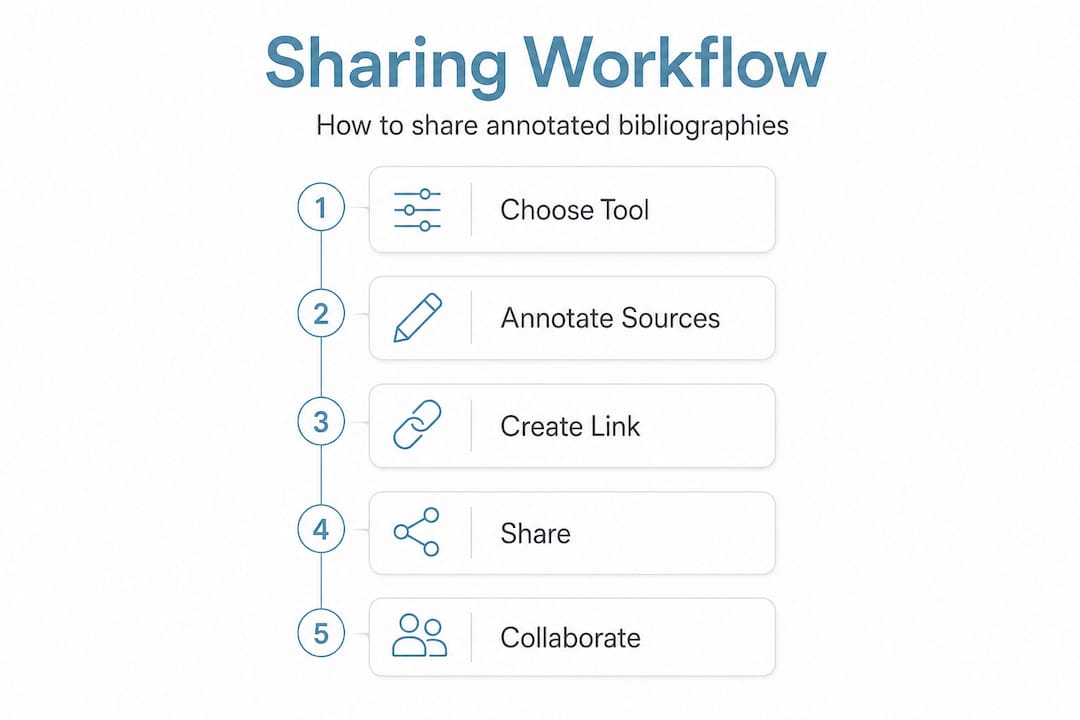
NCBI's My Bibliography gives every registered user a personal public URL for their citation collection. It's one of the cleanest examples of native annotated bibliography sharing tools built directly into a research platform. Here's how to set it up:
- Log into your NCBI account at ncbi.nlm.nih.gov and navigate to My Bibliography from your dashboard.
- Verify your citations are complete and correctly attributed. The public page displays exactly what you've saved, so gaps show up immediately.
- Open the Manage My Bibliography settings and locate the public access toggle. Switch your collection to public.
- Copy your personal public URL. NCBI provides a personal public URL for My Bibliography collections showing only citations not labeled as private.
- Label any sensitive citations as private before sharing. Navigate to each citation, open its settings, and mark it private. Those entries will not appear on your public page, even though they remain in your private collection.
- Send the URL to your collaborators. They click it, see your bibliography sorted by date or author, and can access citations without creating an NCBI account.
This is genuinely underused. Most researchers think of My Bibliography as a personal record-keeping tool, not a sharing tool. The public URL feature has been there for years and it costs nothing to use.
Pro Tip: Before sharing your NCBI URL with collaborators, open it in an incognito browser window yourself. This shows you exactly what they'll see, including which citations are visible and how the sorting appears. It takes 30 seconds and prevents embarrassing disclosures of private entries.
The public page lets viewers sort by date or author, which is useful when your bibliography spans a large date range or multiple research teams. Citations link out to their PubMed records, so collaborators can access full abstracts directly from your shared bibliography.
Using Zotero to create and share annotated bibliographies as text or PDFs

Zotero's annotated bibliography workflow is more manual, but it produces richer output. The key is the citation style you choose. Standard styles like APA or MLA don't display annotations. You need a style specifically built to pull annotation text from the metadata.
Here's the full workflow:
- Install a custom annotated bibliography citation style from the Zotero style repository. Styles like "Annotated Bibliography" variants are available and clearly labeled.
- Add your annotation text to the Extra field in each Zotero item record. Some custom styles pull from a dedicated "Abstract" field instead, so check the style's documentation before entering text.
- Organize the items you want to include into a single Zotero collection or create a saved search.
- Right-click the collection and select Create Bibliography from Collection.
- Choose your installed annotated style from the citation style dropdown, then select Copy to Clipboard.
- Paste into your preferred destination: a Word document, Google Doc, or email. Alternatively, choose the Save as RTF or print-to-PDF option to generate a file you can upload and share.
Key practical notes on this workflow:
- Zotero requires installing a custom annotated bibliography style and creating bibliographies from collections before you can export anything annotation-inclusive.
- Zotero does not host public URLs. Full stop. If someone asks you to distribute bibliography via link directly from Zotero, that's not possible without a third-party host.
- Once you have a PDF or pasted document, you can upload it to Google Drive, Dropbox, or a markdown-based tool and share that link instead.
Pro Tip: Write your annotations in the Extra field in plain text without markdown formatting if you plan to paste into Word. If you're going to a markdown platform instead, you can use basic formatting like asterisks for bold and line breaks will carry over cleanly.
The most common mistake researchers make in this workflow is writing annotations in the Abstract field and then using a style that reads from Extra, or vice versa. Always test with a single citation before annotating your entire Zotero annotated bibliography collection.
Troubleshooting common issues and best practices when sharing annotated bibliographies via link
Even with the right tools and steps, things go wrong. Here are the problems worth knowing about before you hit send on that link.
- Annotations don't appear in the output. Almost always a metadata field mismatch. The style is looking in Extra, your text is in Abstract. Check the style's source and move your text to the correct field.
- NCBI shows citations you meant to keep private. Go back and audit every citation's privacy label. The default is public once you've switched your collection to public.
- Static exports confuse collaborators. When you send a PDF, collaborators assume it's live. Label your exports clearly with a date and version number, like "Bibliography_v2_June2026.pdf," so everyone knows what they're looking at.
- Annotation links inside Zotero may behave inconsistently across versions and viewing contexts. If you're sharing a Zotero file directly (a .zotero library), test it on the recipient's version before relying on annotation links for navigation.
- Formatting breaks across platforms. Rich text pasted from Zotero into Google Docs sometimes loses hanging indents or introduces extra spacing. Review the output after pasting.
Pro Tip: When sharing bibliographic content online, include a brief note at the top of the document explaining how annotations are formatted and what citation style was used. It saves your collaborators the guesswork and reduces back-and-forth.
"Clarity about what version of a bibliography is being shared, and under what format, is not a courtesy. It's a collaboration requirement."
These issues compound in team settings. One researcher working in Zotero 6 and another in Zotero 7 may see annotation links behave differently on the same file. Test before you distribute.
What to expect after sharing: verifying access and collaboration workflow
Sharing the link is not the finish line. What happens next determines whether the collaboration actually works.
- Test your link on multiple devices. Open it on a desktop browser, a mobile browser, and if possible a tablet. NCBI public pages are generally responsive. Static files uploaded to Google Drive or Dropbox render differently depending on the device.
- Confirm collaborators can see annotations. Ask one collaborator to verify they can see annotation text, not just citation titles. Annotation visibility is the most common thing that gets lost in translation between platforms.
- Establish a feedback protocol. Decide upfront whether collaborators will add comments in a shared document, email you suggested changes, or use a shared tools to streamline academic collaboration platform for version control. Ambiguity here creates duplicate work.
- Communicate updates actively. If your NCBI bibliography changes, the link stays the same but the content updates automatically. If you've shared a static PDF, you need to redistribute the new version and explicitly tell collaborators the old link is obsolete.
- Version control static documents. Keep a naming convention like "ProjectName_AnnotBib_v1_Month_Year" and maintain a change log. Even a simple bullet list of what changed between versions helps collaborators stay oriented.
One thing that catches researchers off guard: NCBI's public URL doesn't send notifications when you update your collection. Collaborators who bookmarked the link may not know new citations have been added. A quick email or message when you update keeps everyone aligned.
Why relying solely on live shareable links can limit collaborative success
Here's a perspective that runs counter to the obvious advice: live links are not always better than static exports, and treating link sharing as the gold standard can actually slow your team down.
Consider the typical scenario. A researcher sets up an NCBI public URL, shares it with co-authors, and then continues adding citations as the literature review evolves. Collaborators open the link two weeks later to find the bibliography looks completely different from the version they reviewed. Without a change log or notification system, nobody knows what's new, what was removed, or what's been annotated more recently. Sharing via link is easiest when the platform supports built-in public URLs, which Zotero does not natively provide for annotated bibliographies. But even NCBI's native sharing, as clean as it is, assumes a level of communication discipline most research teams don't have by default.
The teams that handle bibliography collaboration best are the ones that treat sharing as a process, not a one-time action. They combine live links with versioned static exports: the link for browsing, the export for formal review. They plan the sharing format at the start of the project, not after the bibliography is built. And they pick advanced bibliography management solutions that support both hosted viewing and downloadable exports.
The next wave of tools in this space will integrate automatic change notifications, annotation commenting, and export scheduling. Until then, a hybrid approach, live link plus dated export plus a one-line email summary when things change, is the most reliable method for collaborative annotated bibliography work.
Discover Markbin: the smart platform for sharing and managing annotated bibliographies
If the workflows above feel like too many moving parts, Markbin was built for exactly this situation. Paste your annotated bibliography as markdown, and Markbin instantly generates a shareable link with clean, readable formatting. No software for your collaborators to install, no file attachments, no version confusion. The platform supports full GitHub Flavored Markdown, so citations, annotations, tables, and even nested lists render exactly as intended. You control access with password protection or set documents to self-destruct after a set time, which is genuinely useful for pre-publication bibliography reviews. For teams with ongoing projects, Markbin's pricing plans cover both individual researchers and institutional use. It's the missing layer between your reference manager and your collaborators.
Frequently asked questions
Can I share an annotated bibliography directly from Zotero as a public link?
Zotero does not natively host public links for annotated bibliographies. You need to export the bibliography as text or PDF, then share it via a platform that supports public URLs.
How do I control privacy when sharing my My Bibliography collection on NCBI?
You can label individual citations as private, which ensures they won't appear on your public page. NCBI's My Bibliography lets you mark citations individually so sensitive entries stay hidden from collaborators who access your shared link.
What is the typical length and content of annotations in an annotated bibliography?
Annotations are typically 100-200 words, combining a summary of the source with an evaluation of its relevance and credibility. Your citation style guide or assignment instructions will specify which elements to include.
Are there issues with clicking annotation links inside Zotero?
Yes. Annotation highlighting issues occur in certain Zotero versions where clicking an annotation link doesn't correctly highlight the referenced passage. Newer betas address this, so keeping Zotero updated reduces the risk.