
The most reliable approach to secure exam materials is a two-layer method: password-to-open PDFs or encrypted ZIP exam packs for the files themselves, combined with expiring links or LMS activity passwords for delivery. Release the password shortly before the exam starts, rotate it between groups, and never send it in the same message as the file.
Quick delivery pairings:
- Single PDF exam: password-to-open + permissions password (blocks printing/copying) via Adobe Acrobat or macOS Preview
- Mixed-format exam pack: AES-256 encrypted ZIP archive (7-Zip or WinRAR) with encrypted file names
- LMS-delivered exam: Canvas, Blackboard, or Moodle activity password with timed availability window
- Short-window digital delivery: expiring passworded link (Markbin, or similar) with a self-destructing document
The hard limit: Password protection stops casual unauthorized access. It does not stop a student who photographs the screen, prints and walks out, or shares the password with a classmate. Technical controls work best when paired with process controls — watermarks, proctoring, and chain-of-custody for printed materials.
Table of Contents
- At-a-glance methods for securing exam materials
- How to password-protect PDFs with Adobe Acrobat and macOS Preview
- How to password-protect Microsoft Word documents
- How to create an encrypted exam pack with 7-Zip or WinRAR
- Password protection in LMSs: Canvas, Blackboard, Moodle, and MindTap
- Secure distribution: expiring links, password rotation, and safe sharing
- What password protection won't stop, and how to mitigate it
- Pre-exam workflow: create, encrypt, test, distribute, revoke
- How Markbin fits this workflow
- Key Takeaways
- The gap between "secure" and "secured"
- Markbin makes secure exam sharing simpler
- Useful sources and further reading
At-a-glance methods for securing exam materials
Choosing the right method depends on your file types, delivery environment, and how much technical overhead your team can manage.
| Method | Best for | Key trade-off |
|---|---|---|
| Password-to-open PDF | Single-file exams, any device | Easy to set; student needs a PDF reader |
| Permissions-restricted PDF | Preventing printing/copying after access | Enforced only by compliant PDF readers |
| Encrypted Word document | Drafting and editing workflows | Word Online cannot apply or open file passwords |
| AES-256 ZIP archive (7-Zip/WinRAR) | Mixed file types, offline delivery | Requires extraction software on student device |
| LMS activity password | In-platform proctored testing | Platform-dependent; logging built in |
| Expiring passworded link | Short-window digital delivery | Requires a platform that supports link expiration |
When to use each:
- Quick distribution without an LMS: expiring passworded links reduce the window for forwarding; secure file-sharing workflows cover the practical mechanics
The HKUST exam paper guidelines recommend rotating passwords between exam groups and setting expiration dates on sensitive links — two controls that cost almost nothing to implement but meaningfully shrink the leak window.
How to password-protect PDFs with Adobe Acrobat and macOS Preview
Set both a password to open and a separate permissions (owner) password. The open password controls who can see the file. The permissions password controls what they can do with it — print, copy, edit — once they're in.
Adobe Acrobat
- Open the PDF in Acrobat.
- Go to Tools > Protect > Encrypt > Encrypt with Password.
- Check Require a password to open the document and enter a strong open password.
- Check Restrict editing and printing and enter a separate permissions password.
- Set printing to None and content copying to Not Allowed.
- Save the file. Acrobat will warn you that the settings take effect on next open.
- Test: close the file, reopen it, and verify the password prompt appears. Try printing — it should be blocked.
Acrobat also supports reusable security policies for PDFs, which is worth setting up if your department protects exam files regularly. One policy, applied to every new exam, removes the manual step of configuring permissions from scratch each time.
macOS Preview
- Open the PDF in Preview.
- Go to File > Export as PDF.
- Click Show Details, then check Require password to open.
- Enter and confirm the open password.
- Click Permissions, set a separate owner password, and uncheck Allow printing and Allow copying.
- Save. The new settings take effect the next time the file is opened.
Apple's Preview password guide confirms that Preview supports both open and owner passwords and that permission changes apply on the next open.
One important caveat: PDF permissions are enforced by the PDF reader, not the file itself. A non-compliant reader can ignore them. For high-stakes exams, treat permissions as a deterrent layer, not a hard lock. For a deeper look at PDF encryption options, the practical differences between 128-bit RC4 and AES-256 matter more than most educators realize.
Pro Tip: Use a different password for "open" and "permissions." That way, if a student somehow obtains the open password, they still cannot remove the restrictions or edit the file. Keep the permissions password in your institution's secure password vault, not in email.
How to password-protect Microsoft Word documents
Desktop Word encrypts the entire file. Word Online cannot apply file passwords and cannot open a password-protected document — if your students or staff are working in a browser, this method will not work for them.
Steps in desktop Word (Windows or Mac)
- Open the document in Word.
- Go to File > Info > Protect Document > Encrypt with Password.
- Enter a strong password and click OK.
- Re-enter the password to confirm, then click OK.
- Save the file. The password is now required to open it.
- Test immediately: close the file, reopen it, and confirm the password prompt appears.
Microsoft's Word password protection documentation confirms that Word passwords are case-sensitive and that there is no built-in recovery option if the password is lost.
Admin and IT considerations
This is where most institutions get caught off guard. DocRecrypt is Microsoft's enterprise recovery tool for encrypted Word files, but it only works if it was deployed and configured before the file was encrypted. If your IT team hasn't set up DocRecrypt and a faculty member encrypts an exam, that file is unrecoverable without the original password.
Plan your key escrow policy before you allow file-level encryption. Decide who holds recovery keys, how long they're retained, and what the escalation path is on exam day if a password is lost.
Pro Tip: Word passwords have no minimum length requirement, but short passwords are trivially brute-forced. Use at least 12 characters mixing uppercase, lowercase, numbers, and symbols. Avoid dictionary words and never reuse a password from a previous exam.
How to create an encrypted exam pack with 7-Zip or WinRAR
When your exam includes multiple file types — a Word document, an audio clip, a reference image — bundle them into a single AES-256 encrypted archive. Students get one file to open, and you control access with a single password.
7-Zip
- Select all exam files, right-click, and choose 7-Zip > Add to archive.
- Set Archive format to 7z.
- Under Encryption, set Encryption method to AES-256.
- Enter and confirm a strong password.
- Check Encrypt file names to hide the contents list from anyone without the password.
- Click OK to create the archive.
For batch creation, 7-Zip supports command-line use:
7z a -t7z -mhe=on -p"ExamPassword123!" ExamPack.7z ExamFolder\*
The -mhe=on flag encrypts file names. Replace "ExamPassword123!" with your actual password.
WinRAR
- Select your exam files, right-click, and choose Add to archive.
- Go to the Advanced tab and click Set password.
- Enter and confirm the password.
- Check Encrypt file names.
- WinRAR uses AES-256 by default for RAR5 format archives.
- Click OK to create the archive.
Testing both:
- Extract the archive on a clean machine (one that didn't create it) to confirm the password prompt appears
- Attempt to list the archive contents without the password to verify file names are hidden
- Confirm all files extract correctly and open as expected
Password protection in LMSs: Canvas, Blackboard, Moodle, and MindTap
Platform-native controls are almost always the better choice for in-class digital exams. They log access, enforce time windows, and don't require students to install extraction software.
MindTap supports activity-level passwords. Instructors can set a unique password per assignment, which students enter before the activity unlocks. This is straightforward for single-section courses; for multi-section courses, set a different password per section and release each one separately.
Canvas uses availability dates and timed quiz settings rather than a traditional password field. The closest equivalent is a combination of a restricted availability window and an access code under Quiz Settings > Access Code. Set the code, distribute it verbally or via a separate secure channel at exam time, and set the quiz to close automatically at the end of the window.
Blackboard supports test availability settings with password protection under Test Options > Test Availability. You can set a password, restrict access to specific dates and times, and limit the number of attempts.
Moodle offers quiz-level passwords under Quiz Settings > Extra restrictions on attempts > Require password. Combine this with a timed availability window and IP restriction if your exam is proctored in a computer lab.
Batch operations:
- In Canvas, use the Bulk Edit feature for availability dates across multiple quizzes
- In Moodle, use the Quiz overrides feature to set group-specific passwords without duplicating the quiz
- Always run a test submission with a dummy student account before exam day
When to use LMS vs. file-based passwording: LMS delivery is preferred when you need access logs, automatic time enforcement, and in-platform submission. File-based encryption (PDF or ZIP) makes sense when the exam will be printed, when students are offline, or when you're distributing to multiple institutions with different LMS environments.
Secure distribution: expiring links, password rotation, and safe sharing
The password and the file should never travel together. Send the file or link first, then release the password through a separate channel at exam time.
Best practices:
- Set link expirations to match the exam window — a link that expires shortly after the exam starts cannot be forwarded usefully
- Rotate passwords between exam groups or sections; a password used in a 9 AM section should not work for the 2 PM section
- Never post passwords in a mass email, a public LMS announcement, or a group chat
- For high-stakes exams, release the password verbally in the room or via a secure one-to-one message at start time
- Limit the number of staff members who can see the password before the exam
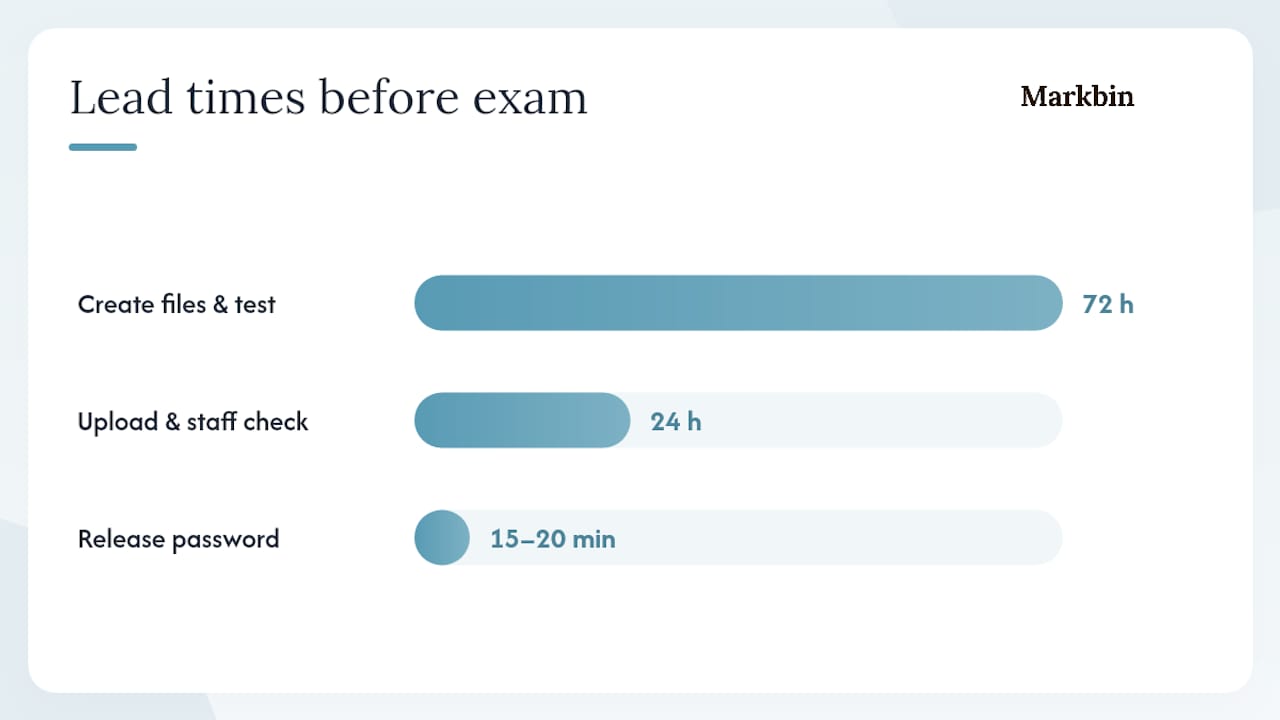
The HKUST guidelines specifically recommend distributing passwords 15–20 minutes before the exam starts. That window is short enough to limit forwarding but long enough for students to open the file before the clock starts.
Expiring passworded links — the approach described in time-limited exam sharing workflows — add a second layer: even if a student shares the link, it stops working when the window closes.
Recommended timeline:
- 72 hours before: create files, apply encryption, test opens and permissions
- 24 hours before: upload to delivery platform, run staff access check
- 15–20 minutes before start: release password via secure channel
- Post-exam: revoke or expire links, collect and account for printed materials
Self-destructing link use cases show how expiring links work in practice for time-sensitive professional documents — the same logic applies directly to exam delivery.
What password protection won't stop, and how to mitigate it
Password protection is a deterrent. Once a student has the open password and the file is on their screen, the technical lock is gone. The real risks are screen photographs, printed copies, and password sharing.
| Risk | Practical mitigation |
|---|---|
| Screen capture or photography | Add visible watermarks with student name/ID; use individualized exam versions |
| Printed copies leaving the room | Proctor-controlled printing; collect all printed materials at the end |
| Password sharing between students | Rotate passwords per group; release verbally, not in writing |
| Brute-force attacks on the file | Use 12+ character passwords; AES-256 encryption (7-Zip, Acrobat) |
| Insider leak (staff forwarding) | Split key custody; limit who sees the password before exam day |
For printed materials, the MCAS Test Security Requirements set the standard: locked storage before distribution, tracking forms for each booklet, and shredding of used scratch paper. These aren't just bureaucratic steps — they're the controls that hold up under a security audit.
For high-assurance environments, research projects like DOR Exam Vault and ZeroLeak demonstrate AES-256-GCM encryption with timelocked key splitting and blockchain-enforced release times. These are not off-the-shelf tools, but they illustrate what's possible when the stakes justify the infrastructure.
Mitigation checklist for lower-resource settings:
- Add a unique student identifier (name, ID number) as a watermark on every page
- Release the password verbally in the room only
- Collect and shred all printed exam materials immediately after the session
- Log who accessed the digital file and when
Pre-exam workflow: create, encrypt, test, distribute, revoke
- Create the exam file in your preferred format (PDF, Word, or mixed-format folder).
- Encrypt using the appropriate method: password-to-open PDF, encrypted Word document, or AES-256 ZIP archive.
- Test on a clean machine — open the file without the password to confirm it's blocked; open with the password to confirm it works; test printing/copying restrictions.
- Upload to your delivery platform (LMS, secure share link, or file server) and verify the file is accessible only to authorized staff.
- Run a test access check with a dummy student account to confirm the student experience before exam day.
- Hold the password in your secure vault until 15–20 minutes before start time.
- Release the password via a secure, separate channel at start time.
- Post-exam: revoke or expire links immediately, collect and account for all printed materials, and shred scratch paper per your institution's security protocol.
Troubleshooting on exam day:
- Student can't open the file: confirm they have a compatible reader (Adobe Reader for PDFs, 7-Zip for archives); check that the password was copied correctly (case-sensitive)
- Forgotten password: go to your secure vault; if the vault is inaccessible, escalate to IT immediately — this is why DocRecrypt and key escrow matter
- Link expired early: check the expiration setting on the platform; have a backup copy ready to redistribute
How Markbin fits this workflow
Markbin supports password protection, expiring documents, and self-destructing links — which makes it a practical option for short-window digital exam delivery without requiring an LMS or file extraction software on the student's device.
When Markbin fits:
- Quick digital delivery of a text-based exam with a short access window
- Situations where you want the document to self-destruct after the exam closes
- Distributing exam instructions or answer keys to proctors with a time-limited link
- Rotating group-specific passwords without duplicating files
How to use Markbin for a passworded exam:
- Draft the exam content in Markdown on Markbin (supports tables, math formulas, code blocks, and task lists via GitHub Flavored Markdown).
- Enable password protection in the document settings and set a strong password.
- Set the document expiration to match the exam window — the link stops working when the window closes.
- Generate the shareable link and test it from an incognito browser window without the password to confirm it's blocked.
- Distribute the link to students in advance; release the password 15–20 minutes before start time.
- After the exam, the document expires automatically, or you can revoke it manually.
Markbin vs. other methods:
- Use Markbin for fast, short-window text-based digital delivery with built-in expiration
- Use LMS (Canvas/Blackboard/Moodle) for proctored in-platform testing with access logs and auto-grading
- Use encrypted ZIP when the exam includes non-text files or requires offline/printed delivery
Pro Tip: Use Markbin's per-document password settings to assign a different password to each exam group. Create one document, share it with Group A using Password 1, then update the password before Group B's session. No duplicate files, no version confusion.
For more on how password-protected markdown documents work in practice, Markbin's blog walks through the setup in detail.
Key Takeaways
Password-protecting exam materials requires both file-level encryption and process controls — technical locks alone cannot prevent screen photos, printed leaks, or password sharing.
| Point | Details |
|---|---|
| Use two-layer protection | Combine a password-to-open file with an expiring delivery link for the smallest leak window. |
| Release passwords at start time | Distribute passwords 15–20 minutes before the exam, via a separate secure channel from the file. |
| Plan recovery before encrypting | Deploy DocRecrypt or a key vault before any file is encrypted — unplanned recovery is impossible. |
| Mitigate what passwords can't stop | Add watermarks, rotate passwords per group, and follow chain-of-custody for printed materials. |
| Markbin for short-window delivery | Markbin's password protection and document expiration make it a fast option for text-based digital exams. |
The gap between "secure" and "secured"
Most educators treat password protection as the finish line. It isn't. It's the starting line. The real security work happens in the 15 minutes before the exam starts and the 15 minutes after it ends — how the password travels, who sees it, and what happens to the physical or digital materials once students are done.
The tools covered here (Acrobat, Preview, Word, 7-Zip, Canvas, Markbin) are all reliable for what they do. The failure modes I see consistently aren't technical. They're operational: a password sent in the same email as the file, a ZIP archive that nobody tested on a student's actual device, a printed exam left unattended on a desk. A dry run, a checklist, and a secure password vault cost almost nothing and prevent almost all of those failures.
For high-stakes exams, the secure link sharing principles that apply to student projects apply equally to the exam itself. The channel matters as much as the lock.
Markbin makes secure exam sharing simpler
Educators who need a fast, low-friction way to distribute time-sensitive exam content don't always have an LMS configured or an IT team on standby. Markbin gives you password protection, document expiration, and self-destructing links in a single platform — no installation, no account required for the reader.
Create your exam draft in Markdown, set a password and an expiration window, and share the link. Students see a clean, rendered document; the link stops working when the window closes. For group-specific passwords, update the setting between sessions without touching the file.
Markbin's free plan lets you test the workflow today. Paid plans unlock extended document retention, additional themes, and full password protection for ongoing use. Try Markbin to set up a passworded exam document and run a quick access test with a colleague before your next exam.
Useful sources and further reading
- Guidelines to password protect your exam papers
- Protect a Word document with a password — Microsoft Support
- Password-protect a PDF in Preview on Mac — Apple Support
- How to add password and permissions to PDF files — Adobe Acrobat
- MCAS Test Security Requirements (Part I, excerpted from the Fall 2025/Winter 2026 PAM)
- How to Securely Share Exam Answers in Schools and Tutoring Centers | LOCK.PUB Blog
- How can I make my quizzes secure and private? — ProProfs Quiz (support article)