
Email attachments have been the default for file sharing since the early days of digital communication. But they create real friction: bloated inboxes, failed deliveries, version confusion, and zero visibility into whether your document was ever opened. Understanding how shareable links replace attachments is not just a productivity upgrade. It's a shift in how professionals and students communicate, collaborate, and stay secure. This guide breaks down why that shift matters and how to make it work in your daily workflow.
Table of Contents
- Key takeaways
- How shareable links replace attachments in practice
- Comparing your sharing options
- Security and compliance with shareable links
- How to start using shareable links today
- My take after years of watching this play out
- Try Markbin for cleaner, safer document sharing
- FAQ
Key takeaways
| Point | Details |
|---|---|
| Links beat attachments on delivery | Attachments trigger spam filters; shareable links reach inboxes more reliably. |
| Security controls come built in | Links can be password-protected, set to expire, and revoked at any time. |
| Compliance is easier with links | Institutions use link sharing to meet FERPA and HIPAA requirements through centralized access control. |
| Analytics are only possible with links | You can track views, time spent, and interactions. Static attachments give you nothing. |
| Content can be updated without resending | Replace the file behind a link without changing the URL or emailing anyone again. |
How shareable links replace attachments in practice
A shareable link is a URL that points to a file or document stored on a server, rather than embedding the file in the message itself. When you send a link, the recipient clicks through to access the content. The file stays in one place, and you control who can see it.
This matters immediately when you consider size. Most email providers cap attachments at 10 to 25 MB. A single design file, slide deck, or video can blow past that limit before you even get started. Links have no such ceiling.

The deliverability issue is just as significant. Attachments are frequently flagged by spam filters, even when the sender is legitimate. This means your carefully prepared report might land in a junk folder and never get read. Links, sent from a known source, are generally treated as more trustworthy.
Beyond size and delivery, links give you something attachments never could: control after the send. You can:
- Revoke access at any time, instantly cutting off a recipient who no longer needs the file
- Set expiration dates so documents automatically stop working after a deadline
- Add password protection so only intended recipients can open the content
- Update the content behind the link without changing the URL or re-sending anything
That last point deserves emphasis. FlipLink's Replace PDF feature demonstrates what this looks like in practice: swap out the file, the link stays the same, and every recipient automatically sees the updated version. No confusion about which draft is current.
Pro Tip: When sending a link to a large or important document, always add a brief description in the email body. Recipients are more likely to click a link they understand than one that looks vague or suspicious.
Comparing your sharing options
Not all link sharing is equal. The method you choose affects security, analytics, and ease of use significantly. Here is a side-by-side view of the main options:
| Method | Size limit | Access control | Analytics | Update without resending |
|---|---|---|---|---|
| Email attachment | 10–25 MB | None | None | No |
| Google Drive / OneDrive / Dropbox | No practical limit | Basic (view/edit/comment) | Minimal | Yes |
| Advanced platforms (e.g., FlipLink, Markbin) | No practical limit | Password, expiry, revoke | Full engagement tracking | Yes |
Standard cloud storage links from Google Drive, OneDrive, or Dropbox solve the size problem and give you basic permission settings. But they offer little in terms of engagement data or presentation quality. You know the file was shared. You don't know if anyone actually read it.
Advanced platforms enable engagement analytics that are simply not possible with attachments. Tracking who viewed a document, how long they spent on each section, and whether they clicked any links inside it transforms a passive send into a measurable communication. For salespeople, educators, and researchers, that data is genuinely useful.
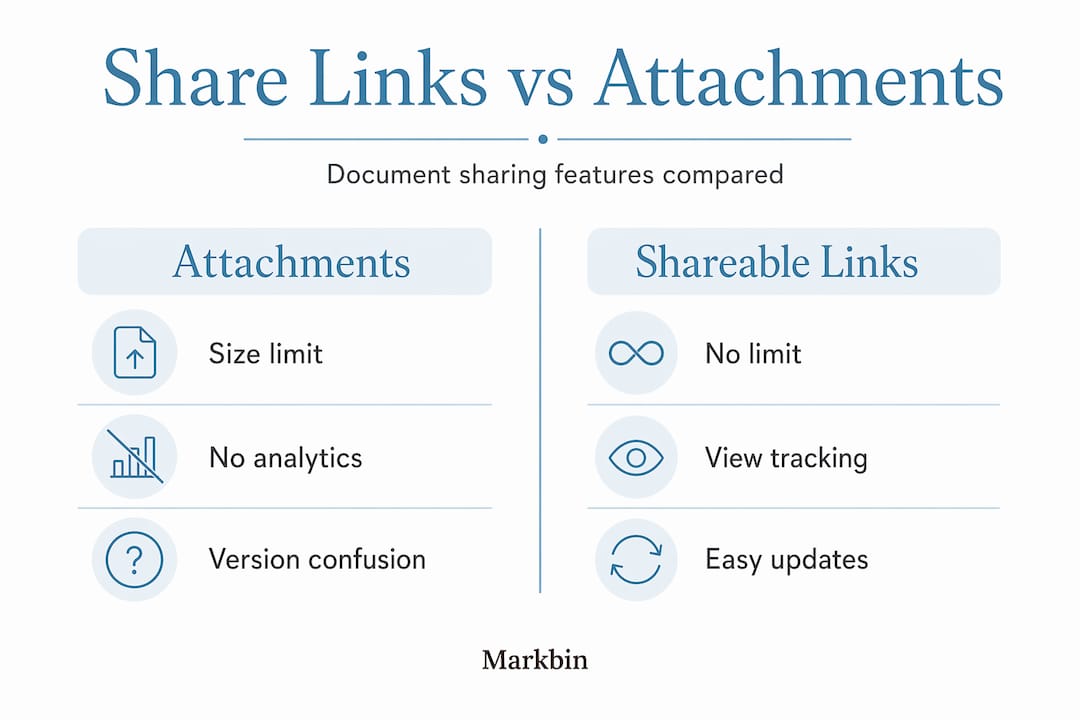
Advanced link services also support password protection, link expiry, custom branding, and interactive views. These features make a meaningful difference in professional contexts where presentation and security both matter.
Security and compliance with shareable links
This is where the benefits of shareable links go beyond convenience. In professional and academic settings, how you share documents affects whether you are meeting your legal obligations.
Institutions increasingly mandate link-based sharing because it supports compliance with regulations like FERPA and HIPAA. The reason is access control. When a student's record or a patient's document is stored behind a secure link, you can revoke access the moment someone's authorization changes. With an attachment, once it's sent, you have no control over where it goes or who reads it.
The malware angle is equally important. Attachments are a common malware vector. Malicious files disguised as PDFs or Word documents are a standard attack method. When you shift to links pointing to hosted content, you eliminate that attack surface entirely. Recipients aren't downloading executable content to their machines.
Best practices for secure link sharing include:
- Use password protection for any document with sensitive or confidential information
- Set expiration dates on links shared for specific purposes, like a job application or a project proposal
- Limit permissions to view-only unless the recipient genuinely needs to edit
- Verify recipients before sharing links to avoid link-based spam risks from unintended access
Centralized access control is what makes link sharing defensible from a compliance standpoint. If you can revoke access, you can respond to a data breach in minutes instead of weeks.
For a deeper look at how this applies to technical documentation and team workflows, Markbin's guide on secure markdown sharing covers the specifics well.
How to start using shareable links today
Switching from attachments to links does not require a new system or a big learning curve. Here is a practical approach you can apply immediately.
-
Choose your platform. For everyday documents, Google Drive or OneDrive work fine. For professional presentations, technical docs, or anything requiring access controls, consider a dedicated tool like Markbin or a comparable service.
-
Upload and generate the link. Most platforms do this in two clicks. Upload the file, right-click (or open the share dialog), and copy the link.
-
Set your permissions before you share. Default settings on most platforms are too open. Change "anyone with the link can edit" to "anyone with the link can view" unless collaboration is the goal.
-
Add an expiration date for time-sensitive documents. Proposals, exam materials, and contracts should not live indefinitely.
-
Name your links and your files clearly. A link pointing to "Q3_Report_Final_v3.pdf" is more trustworthy than one pointing to "document1.pdf." Recipients make split-second decisions about whether to click.
-
Paste the link into your message with context. Describe what the document is and what you want the recipient to do with it. This reduces friction and improves engagement.
It's worth being honest about the trade-offs. Sharing links triggers background requests including metadata scraping and DNS lookups that can affect performance in low-bandwidth environments. For recipients in constrained settings, a heavy preview-generating link can actually create friction. Keep that in mind when sharing with people who may have limited connectivity.
Pro Tip: For researchers and students, link sharing is especially powerful when submitting collaborative work. Check out Markbin's guide on sharing annotated bibliographies via link for a practical academic workflow.
One habit that pays off quickly: build a link log. A simple spreadsheet with the document name, link, permissions set, and expiration date gives you full visibility over what you've shared and with whom. It takes thirty seconds per document and saves real headaches later.
My take after years of watching this play out
I've watched professionals and students resist this shift for years, usually for the same reason: familiarity. Attaching a file feels immediate and self-contained. Sharing a link feels like an extra step. That instinct is understandable, but it's wrong.
What I've found is that the resistance fades fast once people experience the actual workflow. The moment a colleague updates a report and realizes every recipient automatically has the new version, or when a student submits work and can track whether the instructor actually opened it, the logic of attachments stops making sense.
What I want to be honest about is that links are not magic. Poorly managed links create their own mess. I've seen shared drives with hundreds of poorly named, permission-inconsistent links that were harder to navigate than any inbox. The tool only works as well as the habits around it.
My real recommendation is this: start small. Pick one document type you send repeatedly, whether that's a weekly status update, a syllabus, or a project proposal, and commit to sharing it via link for a month. The time you save, the visibility you gain, and the security you add will make the case better than any argument I can offer.
— Zack
Try Markbin for cleaner, safer document sharing
If you've been looking for a tool that handles the formatting, security, and sharing in one place, Markbin is worth exploring. It converts plain markdown text into beautifully rendered documents and generates a secure shareable link in seconds, no sign-up required. You get password protection, self-destructing documents, and full GitHub Flavored Markdown support including tables, task lists, and syntax highlighting. Whether you're a developer sharing technical documentation, an educator distributing course materials, or a writer sharing drafts, Markbin gives you professional-grade sharing without the overhead. Explore Markbin and see how quickly you can move past attachments for good.
FAQ
Why do shareable links replace PDF attachments?
Links avoid email size limits and spam filter issues that frequently block PDF attachments. They also allow you to update the document, control access, and track engagement after sending.
Are shareable links more secure than attachments?
Yes, in most cases. Links reduce malware risk because recipients don't download files directly to their devices, and you can revoke access or set expirations that attachments cannot offer.
Why do students share links instead of attachments?
Students share links because they support real-time collaboration, eliminate version confusion, and are required by many institutions for compliance with privacy regulations like FERPA.
What are the main benefits of shareable links over email attachments?
The primary link sharing advantages include no file size restrictions, better email deliverability, revocable access, expiration controls, and the ability to update content without resending.
Can shareable links create security risks?
Yes. Poorly managed links can be forwarded or accessed by unintended recipients. Always verify recipients, set appropriate permissions, and use password protection for sensitive documents.