
Every teacher has been there: you send out the assignment, and within ten minutes, three students can't open it, two got the wrong version, and one edited your master document. Learning how to share classroom instructions via link correctly is not just a convenience. It's the difference between a class that runs smoothly and one where you spend the first fifteen minutes troubleshooting access errors. This guide covers what to prepare, how to build and distribute links that actually work, and how to avoid the permission problems that silently break student access.
Table of Contents
- Key takeaways
- How to share classroom instructions via link: what to prepare first
- Methods for creating and distributing class instruction links
- Common troubleshooting and best practices
- What actually changes when you do this well
- My take on what most educators get wrong
- How Markbin helps you send class instructions link
- FAQ
Key takeaways
| Point | Details |
|---|---|
| Choose the right link type | Picking between view-only, make-a-copy, or download links determines how students interact with your materials. |
| Test before you send | Always verify links on multiple devices and browsers to catch permission errors before students do. |
| Use one central portal | Directing students to a single landing page or class link reduces confusion and cuts down on repeated questions. |
| Add multimedia to instructions | Embedding screencasts or audio clips inside assignments improves clarity and student retention. |
| Keep permissions audited | Regularly review sharing settings to prevent access drift that breaks links after distribution. |
How to share classroom instructions via link: what to prepare first
Before you generate a single URL, spend five minutes thinking through what you're actually sharing and who needs to do what with it. That decision shapes everything downstream.
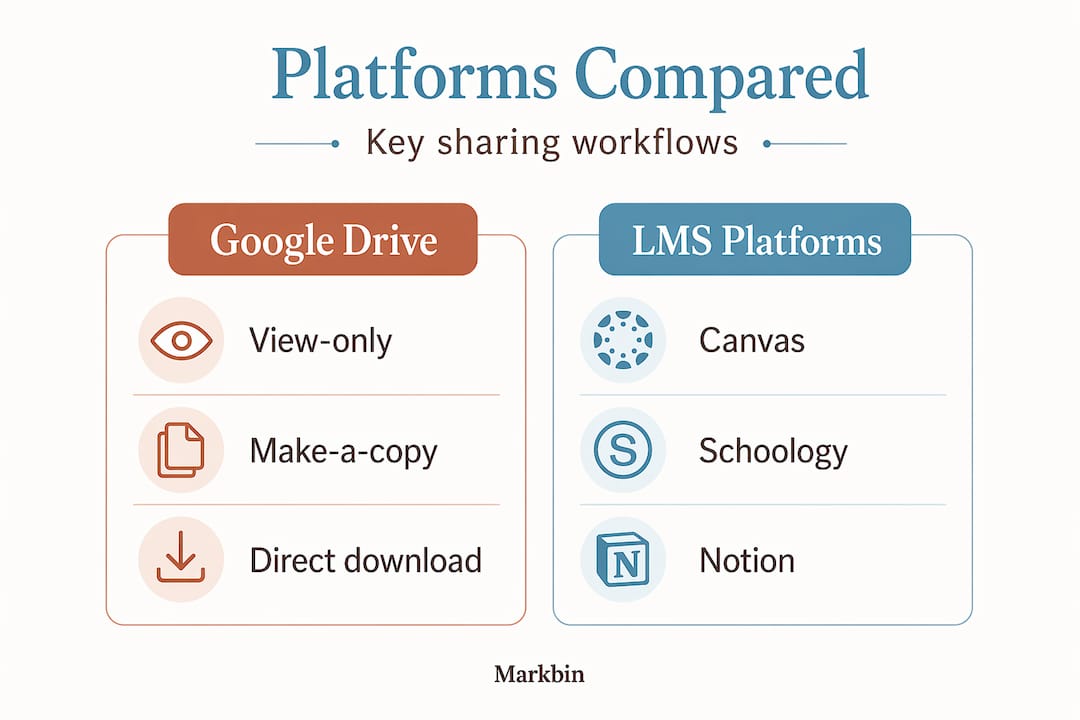
Start by categorizing your materials. A worksheet students need to fill out requires a different link type than a reference document they're only reading, or a PDF rubric they should save locally. The three main link behaviors you'll choose between are view-only (students can read but not edit), make-a-copy (students get their own editable copy while your original stays intact), and direct download (the file saves to their device immediately).
The table below maps common instructional materials to the link type that fits best:
| Material type | Recommended link type | Why it works |
|---|---|---|
| Assignment worksheet | Make-a-copy | Students work on their own version; master file is protected |
| Reading or reference doc | View-only | Prevents accidental edits; consistent version for all |
| Rubric or checklist | Direct download (PDF) | Students save and reference offline |
| Slide deck presentation | View-only or make-a-copy | Depends on whether students annotate slides |
| Quiz or form | Platform-generated link | Google Forms or similar tools handle permissions natively |
Platform choice also matters. Google Drive, Canvas, Schoology, and Notion each handle sharing differently. Google Drive is particularly flexible because you can modify link behavior by editing the URL suffix, turning a standard edit link into a make-a-copy prompt or a direct download trigger just by changing a few characters at the end of the URL.
Pro Tip: Before distributing any link, open it yourself in a private or incognito browser window. This simulates exactly what a student sees, including any sign-in prompts or access-denied screens you might otherwise miss.
Set permissions at the folder level when possible. If you manage all your class materials inside a single Drive folder and share that folder with your class, you avoid the most common cause of broken links: forgetting to update permissions on individual files.
Methods for creating and distributing class instruction links
Once you know what you're sharing and how students should interact with it, generating and distributing the link takes only a few minutes per resource. Here is a step-by-step breakdown of the most reliable methods.
Creating links in Google Docs and Drive
- Open the document or file in Google Drive.
- Click Share in the top right corner.
- Under General access, change the setting to Anyone with the link if students do not have school Google accounts, or restrict to your domain if they do.
- Choose the appropriate role: Viewer, Commenter, or Editor.
- Copy the link from the sharing dialog.
- To convert an edit link to a make-a-copy link, replace "/edit
at the end of the URL with/copy`. Students will then see a prompt to save their own version rather than opening your original file directly.
For PDF direct downloads from Drive, the URL format changes the behavior: replace /view in the standard file URL with /uc?export=download. Dropbox handles this differently by appending dl=1 to the end of the share URL instead of the default dl=0.
Using QR codes for physical and hybrid classrooms
QR codes are worth adding to any printed handout, poster, or whiteboard display in your classroom. They function as the last-mile access point between your physical environment and your digital materials. A student who forgets the email or loses the link can scan a code on the board and land on the right resource instantly.
The key is labeling clearly. Print the QR code with a short descriptor like "Week 3 Instructions" or "Lab Report Template" so students know what they're scanning before they do it. Always test the printed code on at least two different phones before posting it.
Pro Tip: Point your QR code to a landing page or link hub rather than directly to a single document. When you update the document, the QR code still works because the destination URL hasn't changed.
You can also share quizzes using QR codes for quick formative assessments, which removes the friction of students typing in long form URLs or class codes manually.
Integrating multimedia into your instruction links
One of the most underused methods for distributing classroom guidelines is embedding short video or audio explanations directly inside the assignment. Google Classroom's 2026 update lets teachers record screencasts and audio directly inside assignments without leaving the platform. A two-minute walkthrough attached to a complex worksheet answers the most common questions before students even ask them.
For platforms that don't support in-app recording, record a short Loom or screen capture, upload it to Drive, and include the view-only link at the top of your instruction document.
Common troubleshooting and best practices
Distributing links successfully is half the job. Keeping them working after distribution is where many educators lose time.
Permission drift is the most common and least obvious problem. It happens when a file's sharing settings get changed, when a document is moved to a different folder with stricter permissions, or when a link that worked on a school computer fails on a personal device. Testing across multiple devices before sending is not optional. Build it into your workflow.
Here are the most practical steps to prevent and resolve access problems:
- Audit permissions monthly. Open your class materials folder and check that sharing settings still match your intended access level. Platforms occasionally reset sharing settings after updates.
- Use a single class portal link. Experienced educators aggregate all weekly instructions into one landing page so students always know where to go. One class page link acts as a single source of truth, which cuts down student confusion dramatically.
- Avoid sending multiple links per assignment. If students need four resources for one project, put all four links on a single instruction page and share that page's URL.
- Update links in place. When you revise a document, update the original file rather than uploading a new one. New files generate new URLs, which breaks any existing links you've already sent.
- Watch copyright boundaries. When you share copyrighted materials with your class, fair use applies when distribution is limited to enrolled students, proper attribution is included, and the amount shared is proportional. Sharing a full textbook chapter via an open link likely crosses that line.
"The goal isn't to send students a link. The goal is to send them a link that works, points to the right version, and keeps working after you've moved on to other things."
Pro Tip: Keep a simple spreadsheet of every link you've distributed, the file it points to, the permission setting, and the date you last tested it. Twenty minutes of organization now prevents hours of troubleshooting later.
Class links also offer a real enrollment advantage over manual codes. Platforms like Newsela show that link-based onboarding guides students through sign-in or account creation automatically, which reduces friction compared to students manually typing a class code and getting stuck mid-process.
What actually changes when you do this well
The payoff from getting your link-sharing workflow right shows up in measurable ways. The first and most immediate is a drop in the volume of "I can't open it" messages. When you use make-a-copy links consistently, you eliminate the problem of students accidentally editing your originals and then asking why the document looks different from their classmate's version.
Student engagement also improves when multimedia instructions are embedded alongside written directions. Teachers who embed recorded instructions inside their assignment workflows see better clarity and higher engagement, particularly for students who process information better through audio or visual explanation than written text alone.
Here is what educators consistently report after implementing organized link-sharing practices:
- Fewer repeated questions about where to find materials
- Students arriving to synchronous sessions having already read or watched the instructions
- Less time at the start of class spent troubleshooting access
- Cleaner version control, since master documents stay intact when make-a-copy links are used correctly
When you treat the act of sharing educational materials as a deliberate workflow decision rather than an afterthought, the benefits compound quickly. Students become more self-sufficient because the resources are always findable. You spend less time on logistics and more time on teaching.
My take on what most educators get wrong
I've spent a lot of time watching teachers build solid lesson content and then distribute it carelessly. The instruction itself is excellent. The link is broken. Or it opens a version from three weeks ago. Or it asks students to request access at 10 PM the night before a deadline.
What I've learned is that most link-sharing problems are not technical. They're workflow problems. The teacher didn't test the link. Or they updated the document but forgot the share settings reset. Or they sent five different links and students couldn't figure out which one was current.
The fix isn't a better platform. It's a consistent, repeatable habit. I always test in incognito mode. I always point QR codes to a hub, not a document. And I always use make-a-copy links when students need to write anything, without exception. Those three habits alone eliminate about 80% of the problems I used to deal with.
The copyright piece also gets underestimated. Most educators aren't deliberately infringing. They just haven't thought carefully about whether a restricted classroom link still counts as distribution under fair use analysis. It does. Being intentional about what you link to, and how widely you open access, matters both legally and professionally.
My honest advice: treat link distribution as part of the lesson design, not the cleanup at the end of it.
— Zack
How Markbin helps you send class instructions link
If your classroom instructions are written in markdown or you're open to adopting it, Markbin gives you a direct path from writing to sharing without any platform friction. You write your instructions, hit share, and get a clean, renderable link you can post anywhere. There's no sign-up required for students to view it, which removes one of the most common access barriers entirely.
Markbin supports password protection and self-destructing documents, which means you control exactly who sees what and for how long. For educators who need to share markdown documents securely, it's a practical solution that handles permissions cleanly without requiring an LMS or Google Workspace setup.
FAQ
What is the simplest way to share classroom instructions via link?
Create a view-only or make-a-copy link from Google Drive or your LMS, test it in a private browser window, and post it to your class portal. Pointing a QR code at the same link gives students physical access as well.
What is a make-a-copy link and when should I use it?
A make-a-copy link prompts students to save their own copy of a document rather than opening the original. Use it any time students need to write in or edit the file, since it protects your master document from accidental changes.
How do I prevent permission errors after sending a class link?
Test the link on multiple devices before distribution, set permissions at the folder level rather than file by file, and audit your sharing settings monthly. Permission drift happens when settings reset or files are moved to folders with different access rules.
Can I embed multimedia in classroom instruction links?
Yes. Google Classroom's 2026 update lets teachers record audio, video, and screencasts directly inside assignments. For other platforms, upload recordings to Drive and include the view-only link inside your instruction document.
How do QR codes fit into a link-sharing workflow?
QR codes work best when they point to a central landing page rather than individual documents. Label each code clearly, test it on multiple phones before printing, and update the destination page as materials change without reprinting the code.