
Version confusion. Feedback buried in email threads. Three people editing the same slide deck with no idea what anyone else changed. If you've ever tried to share presentation outlines with teammates without a clear process, you already know the pain. The good news is that with the right tools, a bit of preparation, and a sensible permissions setup, collaborative outlining goes from chaotic to genuinely smooth. This guide walks you through exactly what to do, what to avoid, and which platforms give you the most control at each stage.
Table of Contents
- Key takeaways
- How to share presentation outlines with teammates
- A step-by-step sharing workflow
- Common mistakes when sharing outlines
- Measuring whether your collaboration is working
- My take on sharing outlines with your team
- Share outlines effortlessly with Markbin
- FAQ
Key takeaways
| Point | Details |
|---|---|
| Prepare before you share | Clean, structured outlines reduce feedback confusion and prevent simultaneous editing conflicts. |
| Set permissions intentionally | Choose view, comment, or edit access based on each teammate's role before sending any link. |
| Share in phases | Send a non-editable skeleton first, then unlock edit access once the structure is approved. |
| Avoid common upload errors | Always wait for file conversion to finish before sharing to prevent incomplete content views. |
| Measure collaboration success | Use audit logs and activity feeds to verify who engaged and where the outline stalled. |
How to share presentation outlines with teammates
Sharing an outline with your team is not just a file transfer. It's a workflow decision. The format you choose, the tool you use, and the access level you grant all shape how the collaboration actually plays out. Getting those three things right before anyone opens your link saves a surprising amount of back-and-forth later.
Picking the right platform
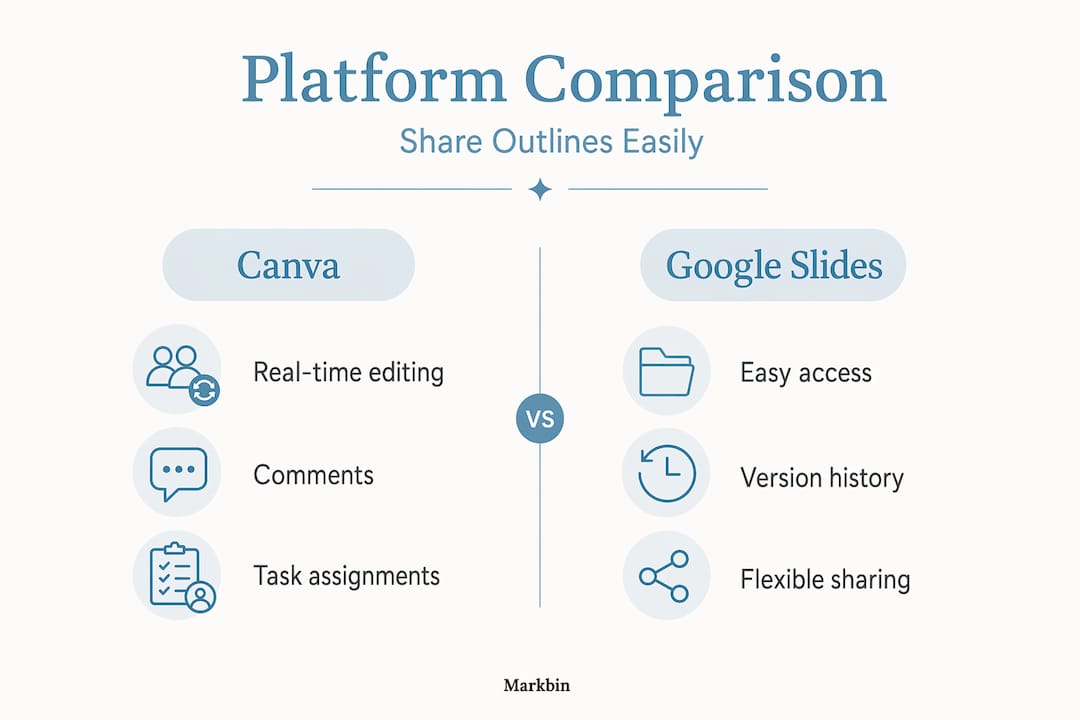
Most teams default to whatever tool they already use, which is fine. The key is knowing what each platform can actually do. Here's a quick comparison of the most common options:
| Platform | Strengths | Limitations |
|---|---|---|
| Canva | Real-time editing, comments, assigned tasks | Less suited for text-heavy outlines |
| SharePoint | Deep permission controls, audit logs | Steeper learning curve for casual users |
| Google Slides | Easy link sharing, comment threads | Version history can get cluttered fast |
| Markbin | Instant shareable links, password protection, no sign-up required | Best for markdown-formatted outlines |
Canva supports team sharing with permission controls by link or user group, which gives you real flexibility when collaborating with people outside your immediate team. SharePoint is more powerful for large organizations but requires more configuration upfront.
Structuring your outline before you share
Before you send anything, your outline needs to be clean. A structured deck typically covers a title, introduction, agenda, problem or solution, and conclusion. Sharing a clear skeleton first creates a shared frame of reference that makes every downstream edit faster and less likely to conflict. If your outline is a rough personal scratchpad, clean it up before your teammates see it. Ambiguity invites interpretation, and interpretation creates rework.

Understanding permissions before you click send
Permission levels are not interchangeable. View access lets teammates read the outline without changing anything. Comment access lets them leave notes without touching the structure. Edit access gives full control, which is appropriate only for core authors. Choosing the right permission level prevents unwanted structural changes during early review stages. Set it wrong, and someone will accidentally delete a section two hours before your deadline.
A step-by-step sharing workflow
Once your outline is clean and your platform is chosen, the actual sharing process follows a predictable order. Here's how to do it well.
-
Create or upload your outline. Use your collaboration platform's native editor or upload a formatted document. If uploading a PowerPoint or PDF file, wait for the file to fully convert before sharing to avoid teammates seeing incomplete or misaligned slides.
-
Set the first slide or page deliberately. For live or asynchronous review, controlling which page your teammates land on first prevents scattered feedback. If your outline starts with an agenda slide, set that as the entry point. It frames everything that follows.
-
Share as view-only first. Send a non-editable outline skeleton to your reviewers before unlocking edit access. This reduces conflicting changes from multiple simultaneous editors and gives everyone a chance to agree on the structure before anyone starts moving sections around.
-
Invite teammates directly or share via link. Direct invites let you assign roles individually. Shareable links are faster but require more careful scoping. For teams using SharePoint, link sharing creates unique permissions that are separate from the broader library access, so audit them regularly.
-
Communicate what you need from reviewers. Tell teammates exactly what kind of feedback you want, which sections are open for discussion, and when you need input. A clear ask gets a faster, more useful response.
-
Upgrade permissions when the structure is locked. Once the outline is approved, open edit access to the relevant authors. Keep it restricted to view or comment for everyone else.
Pro Tip: If you use markdown to draft your outline, tools like Markbin let you generate a shareable, beautifully rendered link in seconds with no file uploads or sign-ins required. That link can carry password protection if you need to limit who sees it.
Common mistakes when sharing outlines
Even experienced teams run into the same handful of problems. Most of them are avoidable with a short checklist.
-
Sharing before upload conversion finishes. Platforms like Collaborate need time to process files. Sharing too early means teammates see partial or garbled content. Always confirm the file status before sending the link.
-
Wrong permissions from the start. Giving edit access to everyone by default is the most common mistake. Someone who should only be reviewing ends up restructuring your outline, and now you have two competing versions.
-
Sharing inconsistent versions. If you update the outline locally and share a new link without archiving the old one, teammates working from the first link will produce feedback on an outdated structure.
-
Ignoring link scope in enterprise tools. In platforms like SharePoint, link sharing must be carefully scoped to avoid unintended access by people outside your project team.
-
No clear feedback deadline. Open-ended sharing invites slow or no response. Every shared outline should come with a concrete review window.
The most preventable collaboration failures come from treating sharing as the finish line. It's actually the starting line. What you do after the link goes out determines whether the outline gets better or just gets longer.
For additional guidance on secure link sharing practices, the principles apply directly to presentation outlines, not just code or documentation.
Measuring whether your collaboration is working
Faster delivery is the most obvious sign that your outline-sharing workflow is functioning. But there are more specific indicators worth tracking.
Metrics that matter
| Success Indicator | What to Look For |
|---|---|
| Iteration speed | Time from first share to approved outline shrinks over successive projects |
| Feedback quality | Comments address substance, not formatting or structure confusion |
| Contributor clarity | Activity logs show who reviewed, who edited, and when |
| Version stability | Fewer rollbacks or competing drafts after the outline is shared |
| Access compliance | No unauthorized viewers appearing in audit logs |
Platforms with audit log features let you monitor who accessed shared content, which helps you identify when someone never opened the outline at all. That's often the real problem: not that feedback was wrong, but that some teammates never engaged with the document in the first place.
Pro Tip: After every major presentation, spend five minutes reviewing who commented versus who was invited. If the same people are consistently silent, the problem is rarely disinterest. It's usually a permissions issue or an unclear ask.
For teams that want a deeper look at how document sharing for teams can improve coordination across distributed groups, the workflow principles transfer directly to presentation outlines.
The real payoff of a solid sharing workflow is not just speed. It's the alignment that comes from everyone working from the same structured frame. When your team reviews the same outline before any styling or content work starts, you avoid the single most expensive mistake in presentation prep: building something beautiful in the wrong direction.
My take on sharing outlines with your team
I've worked with enough distributed teams to know that the conversation about presentation collaboration almost always starts in the wrong place. People immediately ask "which tool should we use?" when the real question is "what does everyone actually need to see, and when?"
In my experience, the single biggest accelerator for team alignment is sharing a rough, non-editable outline skeleton before you do anything else. Not a polished draft. Not a half-built deck. A plain list of sections with two sentences of intent under each one. When teammates review that first, every subsequent conversation is anchored to something concrete. You stop debating structure mid-build.
What surprises most people is how much time overly open permissions waste. I've seen teams where everyone had edit access from day one, and the outline turned into a committee document. Nobody owned it. Fifteen people's instincts competed in a single file, and the final presentation was muddled as a result. Tight permissions early on, then gradual unlocking as the structure stabilizes, produces far better outcomes.
The other thing I'd push back on is the assumption that sophisticated tools solve collaboration problems. They don't. A clearly worded sharing message with a specific deadline and a defined ask outperforms any feature set. The best collaboration workflow I've encountered used a markdown file, a shareable link, and a three-line message explaining exactly what feedback was needed by Friday.
— Zack
Share outlines effortlessly with Markbin
If your team works with structured outlines in markdown, Markbin removes almost all the friction from the sharing process. You write your outline in plain markdown, and Markbin converts it into a polished, shareable link instantly, with no account required for viewers. You can add password protection for internal documents, set links to self-destruct after a set period, and share formatted outlines that render headers, tables, and task lists cleanly in any browser. For teams that want to send presentation notes to colleagues without the overhead of a full collaboration suite, Markbin gives you exactly the control you need, nothing more and nothing less. Try it for your next outline review.
FAQ
What is the best way to share outlines with teammates?
The best approach is to share a clean, view-only version first using a permission-controlled link, then unlock editing once the structure is agreed upon. Tools like Canva, SharePoint, and Markbin all support this phased workflow.
How do I set the right permissions when sharing a presentation outline?
Assign view or comment access to reviewers and reserve edit access for core authors only. Proper permission setting prevents accidental structural changes and keeps collaboration focused during early review stages.
Why does my teammate see incomplete content after I share my file?
This usually happens when a file is shared before the upload conversion finishes. Always wait for the platform to fully process the file before sending the link to your team.
How can I tell if my teammates actually reviewed the shared outline?
Use the audit logs or activity feeds available in platforms like SharePoint to track who accessed the document. If someone never opened it, follow up directly rather than waiting for feedback that will never arrive.
Can I share presentation outlines without requiring teammates to sign in?
Yes. Tools like Markbin generate shareable links that anyone can view in a browser without creating an account, making it easy to send presentation notes to team members or external collaborators without adding friction.