
Markdown is a lightweight markup language that lets educators write structured, portable lesson plans using plain text. When you create shareable lesson plans in Markdown, you produce files that work across every platform, convert to PDF or HTML in seconds, and stay editable without proprietary software. Tools like Pandoc, Visual Studio Code, and GitHub have made this workflow practical for any teacher. Teachers spend an average of 7 hours weekly on lesson planning. Markdown workflows cut that time by eliminating manual reformatting and enabling reuse across courses.
What tools do you need to create shareable lesson plans in Markdown?
The right setup takes less than an hour to configure. You need three things: a Markdown editor, a conversion tool, and a version control system.
Editors worth using:
- Visual Studio Code with the Markdown Preview extension gives you live rendering and Git integration in one window.
- Typora renders Markdown as you type, which works well for educators who find raw syntax distracting.
- Ulysses suits Mac users who want a cleaner writing environment with export options built in.
Conversion and output:
Pandoc converts Markdown to PDF, HTML, slides, and Word documents from a single source file. That single-source approach means you never manually reformat a lesson for a different audience again.

Version control:
Git tracks every change to your lesson files. GitHub and GitLab host those files online, making them accessible to co-teachers and department heads without email attachments. Version control creates a single source of truth for your entire lesson library, which prevents the "which version is current?" problem that plagues shared Google Docs.
| Tool | Primary role | Best for |
|---|---|---|
| Visual Studio Code | Editing and previewing | Educators comfortable with code |
| Typora | Distraction-free writing | Non-technical teachers |
| Pandoc | Format conversion | Exporting to PDF, HTML, slides |
| Git + GitHub | Version control and sharing | Collaborative teams |
| R Markdown | Dynamic content with data | Science and math educators |
Pro Tip: Install the Markdown All in One extension in Visual Studio Code. It adds keyboard shortcuts, auto-formatting, and a table of contents generator that saves real time during lesson drafting.
Optional but powerful: AI tools can generate standards-aligned content from your Markdown templates. Educator Jean-Sébastien Wallez notes that Markdown enables modular content that feeds directly into AI workflows for differentiated lesson generation. That means one well-structured template can produce multiple lesson variants for different learner levels.
How should you structure a Markdown lesson plan for sharing?
Structure is what separates a shareable lesson plan from a text file. Effective shareable lesson plans follow a three-part structure: questions, objectives, and keypoints. This structure, standardized by The Carpentries Workbench, makes content machine-readable for automated testing and rendering on LMS platforms.
The three-part structure in practice:
- Questions open the lesson and frame what learners will explore. Example: "How does photosynthesis convert light into energy?"
- Objectives state measurable outcomes. Example: "By the end of this lesson, students will identify the three stages of photosynthesis."
- Keypoints close the lesson with a concise summary students can reference later.
Beyond the three-part structure, heading hierarchy controls how platforms parse your content. Single H1-H3 hierarchies produce entire course structures when imported into platforms like Canvas or Moodle. Use H1 for the course title, H2 for chapters or units, and H3 for individual lessons. Skipping levels or using headings for visual emphasis breaks automated parsing.
Fenced divs are an advanced technique worth learning early. Fenced divs embed interactive elements like callouts, challenge boxes, and solution reveals directly in your Markdown file without losing plain-text readability. A challenge block looks like this:
::: challenge
What would happen to photosynthesis if chlorophyll were removed?
:::
That block renders as a visually distinct box in any platform that supports GitHub Flavored Markdown (GFM). Markbin supports full GFM, so fenced divs render correctly when you share a lesson link.
Pro Tip: Build a heading template file you paste at the start of every new lesson. Consistent heading levels across your library make bulk exports and LMS imports work without manual cleanup.
Tables belong in Markdown lesson plans for vocabulary lists, comparison activities, and rubrics. Embed them directly in the file rather than linking to a spreadsheet. Linked spreadsheets break when permissions change. Inline tables never do.
Step-by-step workflow for collaborative lesson planning
A repeatable workflow is what makes Markdown lesson planning scale beyond a single teacher.
- Create a YAML front matter block at the top of every lesson file. YAML front matter stores metadata like title, author, grade level, and learning objectives. YAML metadata controls parsing and display in LMS platforms, enabling automated sorting without manual tagging. A minimal front matter block looks like this:
---
title: "Introduction to Photosynthesis"
author: "Ms. Rivera"
grade: 9
subject: Biology
objectives:
  - Identify the inputs and outputs of photosynthesis
  - Explain the role of chlorophyll
---
-
Write content in modular episode files. Each lesson or episode lives in its own
.mdfile. Modular files let you reorder, replace, or share individual lessons without touching the rest of the course. -
Initialize a Git repository and push to GitHub or GitLab. Invite co-teachers as collaborators. They can suggest edits via pull requests, which creates a review trail. No more emailed Word documents with "FINAL_v3" in the filename.
-
Automate output with Pandoc scripts. Write a simple shell script that runs Pandoc on every
.mdfile in your lessons folder. Combining Markdown with CI tools for batch conversion automates output generation and accelerates publishing. One command produces a PDF handout, an HTML webpage, and a slide deck from the same source. -
Share via link, LMS upload, or embedded webpage. Export the HTML version and upload it to Canvas, Schoology, or Google Classroom. Or paste the Markdown into Markbin and share the generated link directly with students or parents. Sharing classroom instructions via link removes the friction of file downloads entirely.
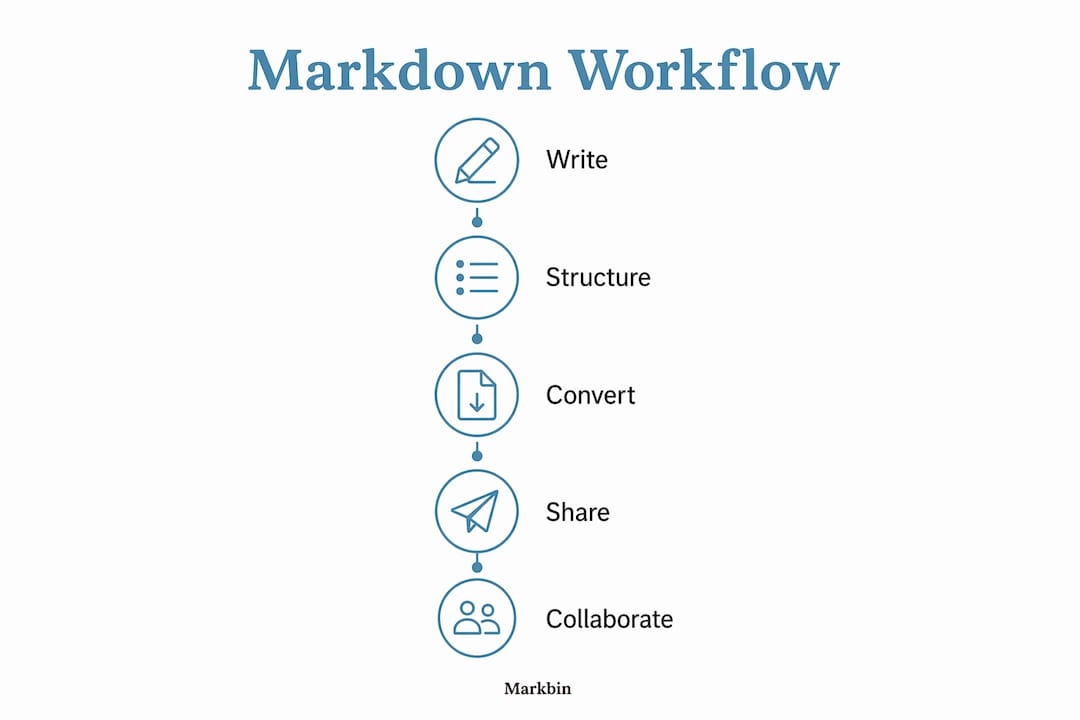
| Workflow step | Tool | Output |
|---|---|---|
| Write and structure | Visual Studio Code or Typora | .md source file |
| Add metadata | YAML front matter | Automated LMS sorting |
| Collaborate | Git + GitHub | Version history, review trail |
| Convert | Pandoc | PDF, HTML, slides |
| Share | Markbin or LMS upload | Shareable link or embedded page |
Pro Tip: Store your Pandoc conversion command in a Makefile in your repository root. Any co-teacher can run make lessons to regenerate all outputs without knowing Pandoc syntax.
Separating content from platform configuration using Markdown prevents platform fatigue. When your school switches LMS providers, your lesson content stays intact in plain text files. You reconfigure the export, not the content.
Common mistakes that break Markdown lesson plans at scale
Most Markdown lesson plans fail not in the writing but in the maintenance. These are the mistakes that cause problems after the first semester.
Format drift is the most common issue. When multiple teachers edit the same repository without a style guide, heading levels become inconsistent, YAML fields get renamed, and Pandoc exports break. Fix this by committing a STYLE_GUIDE.md file to your repository that defines every heading level, YAML field name, and fenced div type your team uses.
WYSIWYG contamination happens when someone pastes content from Word or Google Docs into a Markdown file. Word exports hidden characters and smart quotes that break code blocks and table formatting. Always paste as plain text, then apply Markdown formatting manually.
Missing or inconsistent metadata breaks automated workflows. If one lesson file uses grade: and another uses grade_level:, your sorting scripts fail silently. YAML front matter controls styling and interactive behavior for Markdown exports, so field name consistency is not optional.
Ignoring Markdown vs. rich text tradeoffs leads to tool mismatch. Markdown excels at structured, text-heavy content. For lessons that require heavy image layout or complex design, a hybrid approach using R Markdown or a static site generator like MkDocs works better. Markdown with MkDocs offers faster rebuild speeds and lower onboarding friction than reStructuredText, making it the better choice for most teaching teams.
One underused technique: leverage Markdown's modular structure to feed content into AI tools that generate differentiated versions of the same lesson. A single well-tagged Markdown file can produce a scaffolded version for struggling learners and an extended version for advanced students in minutes.
Key Takeaways
Markdown lesson plans save time, prevent formatting drift, and produce multiple output formats from a single source file.
| Point | Details |
|---|---|
| Use the three-part structure | Open with questions, state objectives, and close with keypoints for machine-readable lessons. |
| Add YAML front matter | Metadata fields like title, grade, and objectives automate LMS sorting and display. |
| Version control is non-negotiable | Git and GitHub give teams a review trail and prevent conflicting file versions. |
| Automate exports with Pandoc | One Markdown file produces PDF, HTML, and slides without manual reformatting. |
| Share via link for zero friction | Platforms like Markbin convert Markdown to a shareable link instantly, no download required. |
Why I think most educators are one template away from a better workflow
I've watched teachers spend Sunday afternoons reformatting the same lesson for three different platforms. The content was identical. Only the container changed. That's the problem Markdown solves, and most educators don't realize how close they are to fixing it.
The learning curve is real but short. The first week with Visual Studio Code and Git feels unfamiliar. By week three, the workflow is faster than anything a Google Doc offers. The payoff is not just speed. It's the ability to hand a co-teacher a repository link and say "everything is in there, take what you need." That kind of sharing changes how departments collaborate.
The mistake I see most often is waiting for the perfect setup before starting. You don't need CI pipelines or MkDocs on day one. Start with a single .md file, a YAML header, and Pandoc. Write one lesson. Export it to PDF. Share it. That's the whole workflow in its simplest form. Expand from there when the need arises.
Markdown also future-proofs your work in a way that no proprietary format does. Plain text files from 2010 open perfectly today. The same will be true in 2036. When your school adopts a new LMS, your lesson library travels with you intact. That's not a minor convenience. It's a decade of curriculum work protected.
— Zack
Start sharing your lessons with Markbin today
Educators who want to put this workflow into practice immediately can use Markbin to publish and share Markdown lesson plans without any setup. Paste your Markdown, get a shareable link, and send it to students, parents, or co-teachers in seconds. Markbin supports full GitHub Flavored Markdown, including tables, task lists, fenced divs, and syntax highlighting, so your lesson structure renders exactly as intended. Password protection and self-destructing documents give you control over who sees sensitive content. No account is required to start. For educators building a shareable study guide or distributing lesson materials at scale, Markbin removes every technical barrier between writing and sharing.
FAQ
What is Markdown for lesson plans?
Markdown is a plain-text formatting system that uses simple symbols to create headings, lists, and tables. Educators use it to write structured lesson plans that convert to PDF, HTML, or slides without reformatting.
How do I share a Markdown lesson plan with students?
Export the file to HTML using Pandoc, upload it to your LMS, or paste it into Markbin to generate a shareable link. Markbin requires no account and renders full GitHub Flavored Markdown instantly.
What is YAML front matter in a lesson plan?
YAML front matter is a block of metadata at the top of a Markdown file that stores fields like title, author, grade, and objectives. LMS platforms and build tools use this data for automated sorting and display.
Can multiple teachers edit the same Markdown lesson plan?
Yes. Hosting lesson files on GitHub or GitLab lets co-teachers suggest edits via pull requests, creating a full review trail. This prevents conflicting versions and keeps the lesson library consistent.
Is Markdown better than Google Docs for lesson planning?
Markdown produces platform-agnostic files that convert to any format and never break due to permission changes or software updates. Google Docs works well for single-use documents but creates dependency on one platform and one format.